Getting started
Your workspace tour
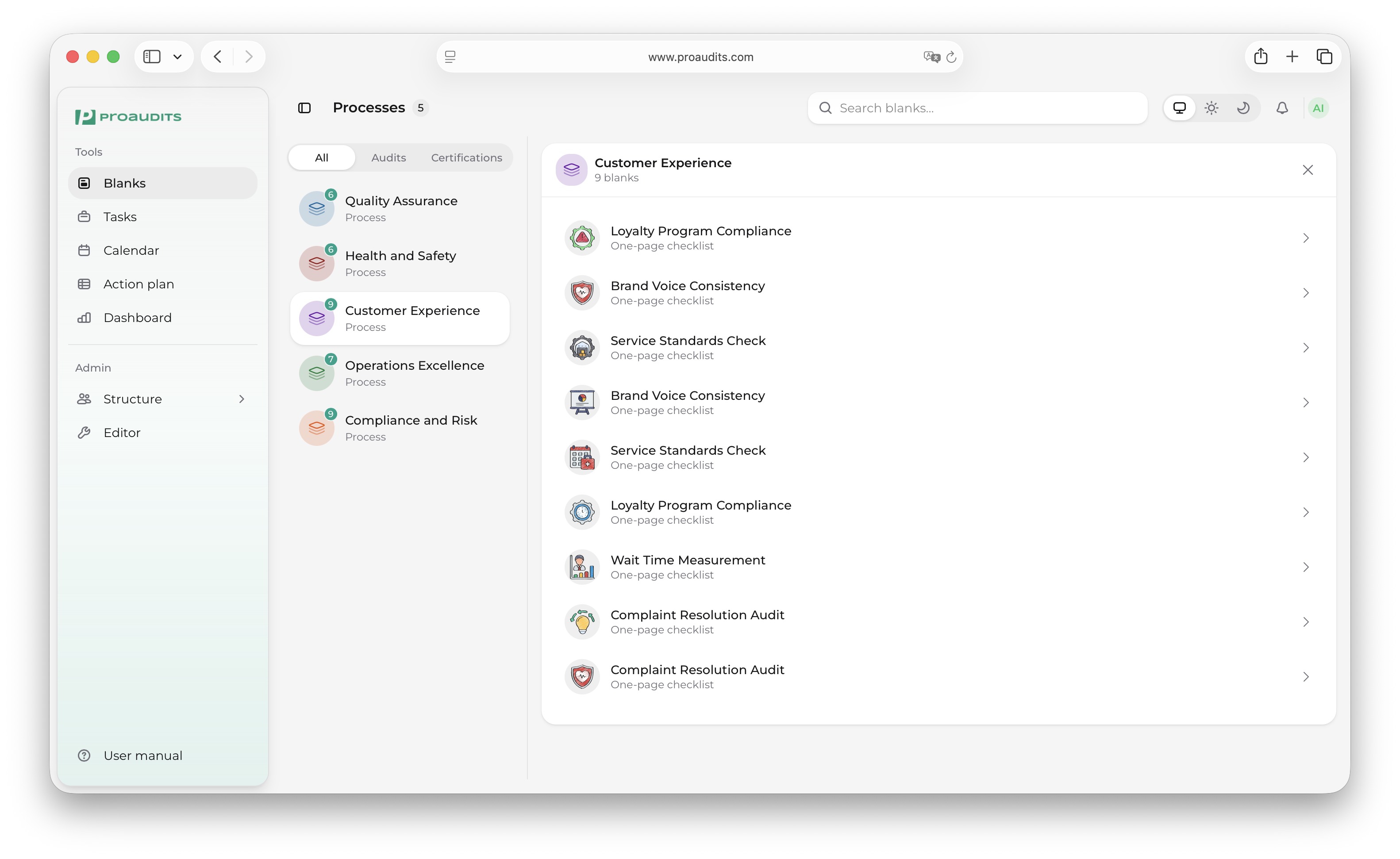
Once you are signed in, ProAudits opens on your Blanks screen — the library of audit templates. From there, everything else is one click away in the left sidebar.
The default home screen
The left sidebar
The sidebar groups the app into two parts: the things you do every day at the top, and the configuration screens at the bottom.
Everyday work (top)
- Blanks — your audit template library. This is also the home button.
- Tasks — your personal task list and the things you've delegated to others.
- Calendar — the visit schedule for the whole team.
- Action plan — the Kanban board of findings to follow up on.
- Dashboard — KPIs, trends, and team performance.
Configuration (bottom)
- Structure editor — employees, the org chart, and the role catalogue. Click to expand the three tabs.
- Editor — the audit-templates designer. The first page manages processes and blanks; each blank then opens into its own content editor.
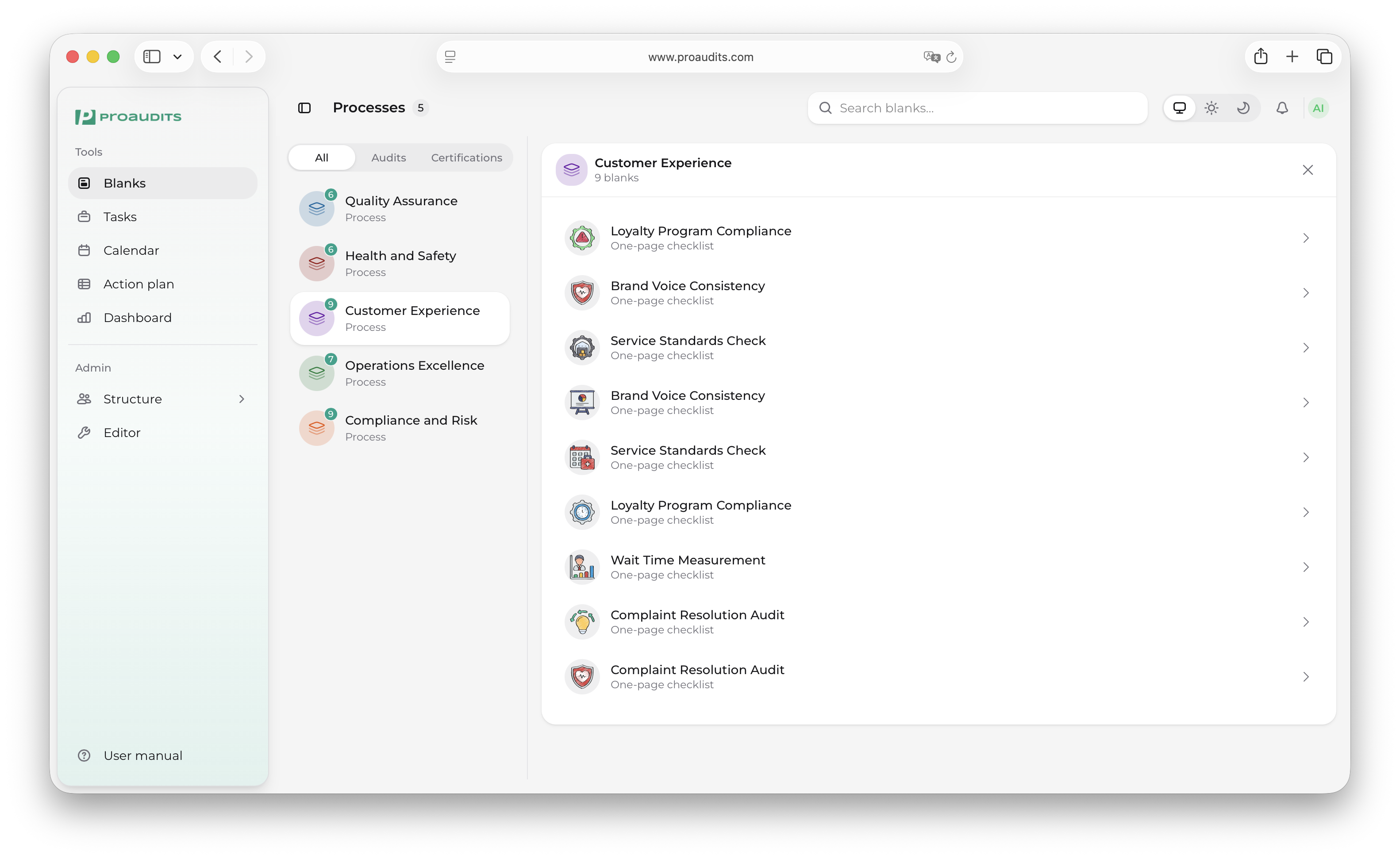
Sidebar — expanded
What you see depends on your role
Auditors, area managers and administrators see different things in the sidebar. If a section in this manual is missing from your menu, ask your administrator — they can grant access from the Roles & permissions screen.
The top bar
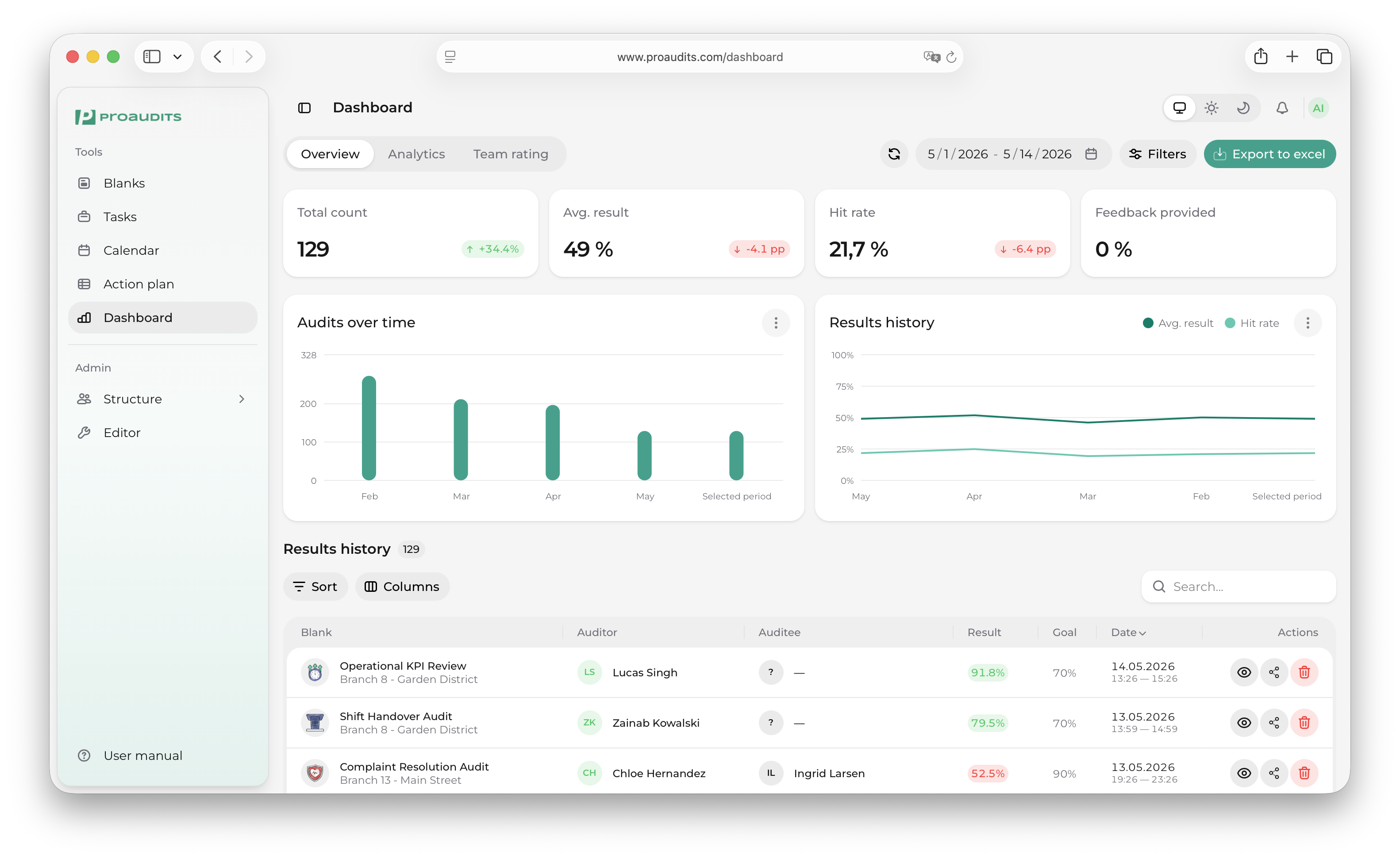
Above every screen sits a thin top bar with three things:
- Page actions — buttons that change with the screen you are on. On the dashboard it holds the date range and export; in the action plan it holds the store and month selectors; in the audit, it holds Save and Finish.
- Notifications bell — opens the notifications panel.
- Your profile menu — language, theme, and sign-out.
Top bar — Dashboard
Notifications
The bell in the top bar lights up when something needs your attention — a new task assigned to you, an audit scheduled on your calendar, a finding waiting for your approval. Click the bell to open the notifications panel.
Notifications panel
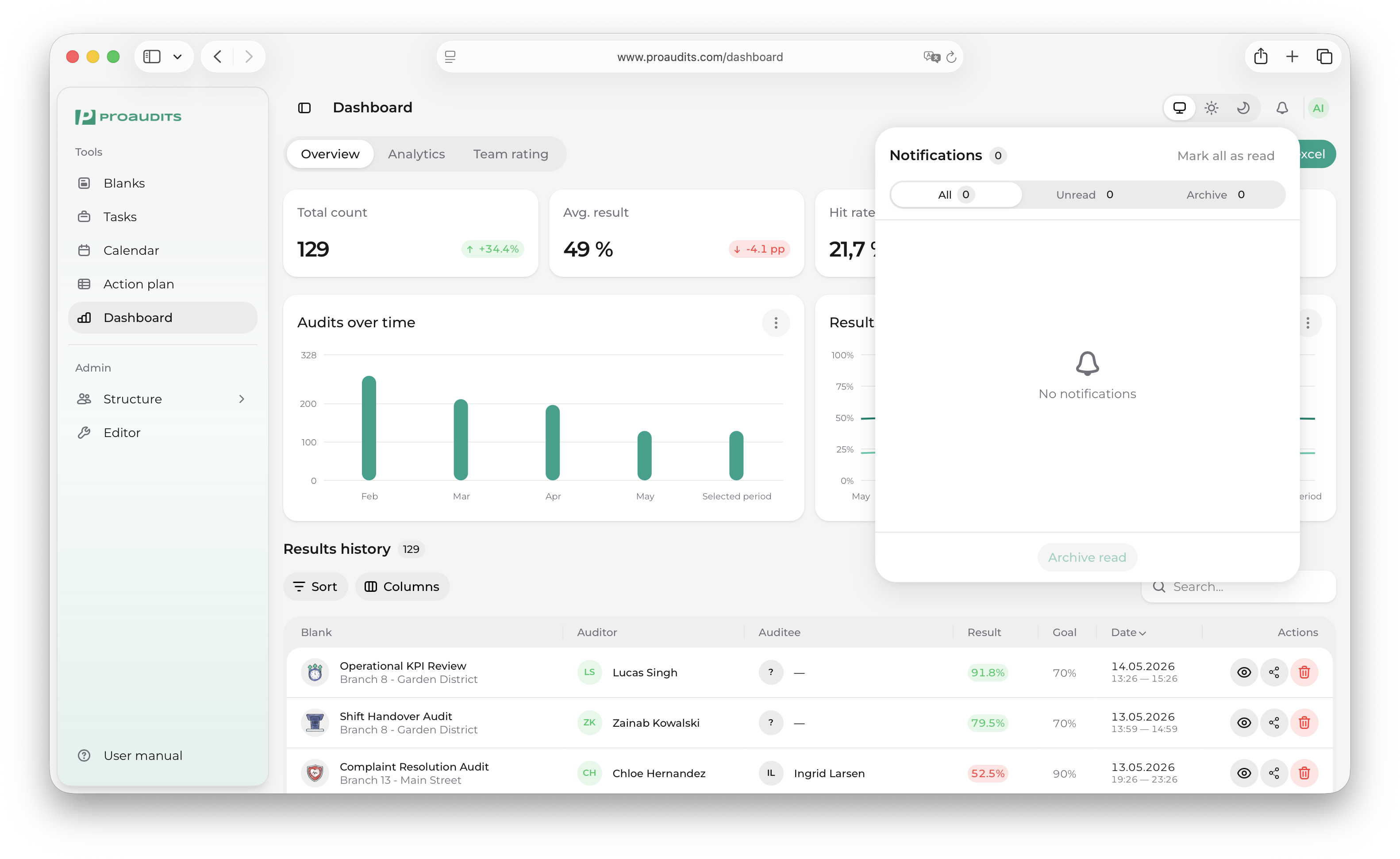
Notifications group by type and stay until you have seen them. Once opened, they fade out of the unread list but stay searchable in case you need them later.
Search
ProAudits' search (the box in the top bar) finds whatever you are looking for across the whole workspace — an audit, a template, a teammate, an action plan card. Start typing and the results group by section so you can jump straight to the right one.
Language and theme
Both live in your profile menu in the top-right corner.
- Language switches between English and Russian. Your choice sticks across sessions.
- Theme switches between light, dark, and follow-the-system. The dark theme is comfortable on long sessions; the light theme is the default.
That's the whole workspace. The rest of this manual walks through each screen in order.