Planning & follow-up
Action plan
Audits surface problems. The Action plan is where you fix them. Each finding becomes a card on a Kanban board with stages, owners, deadlines, and proof of completion.
Action plan — board view
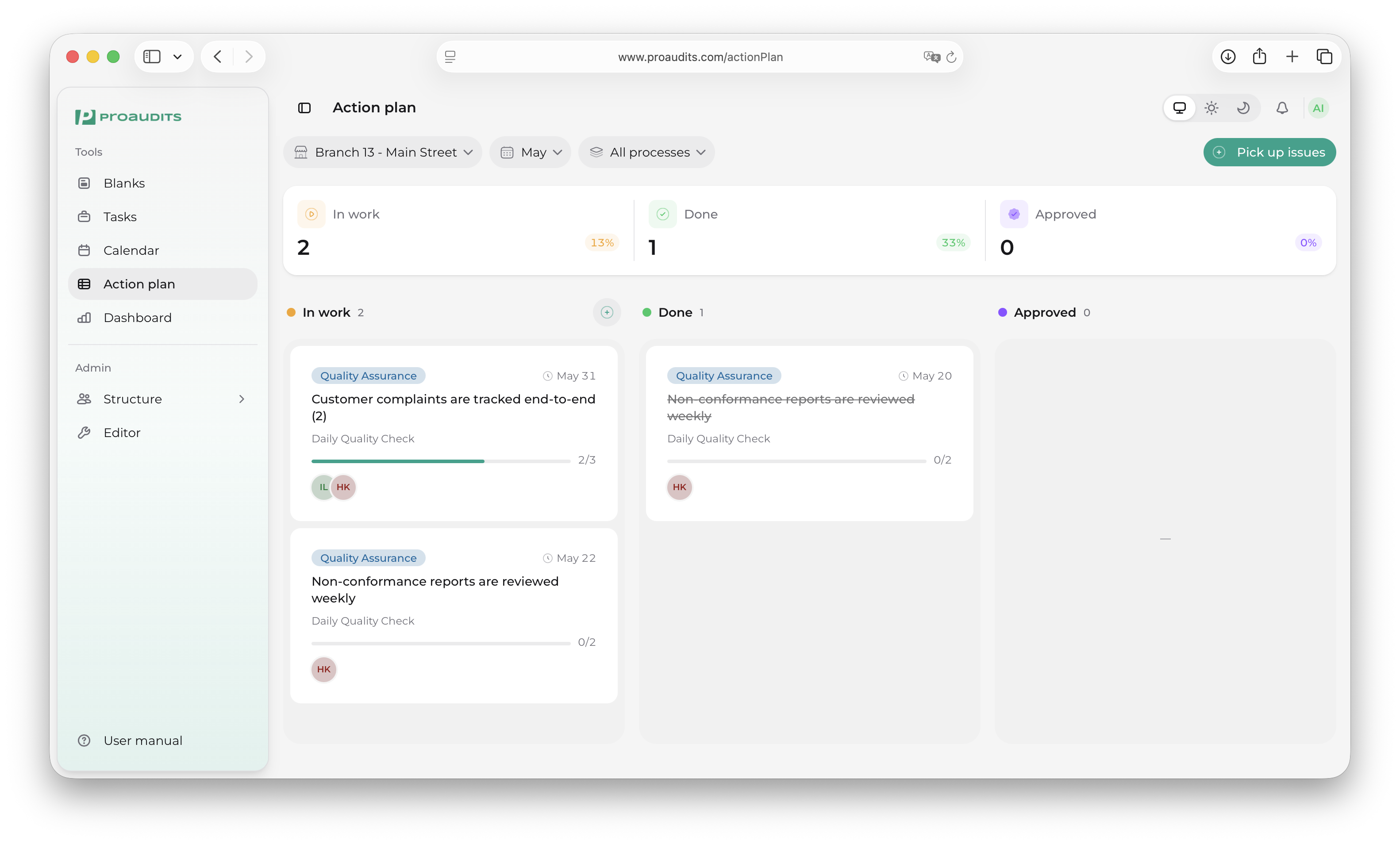
How the board is organised
The page is scoped to one store and one month at a time. Choose them in the toolbar at the top — the board re-renders with that scope's findings.
Action plan toolbar
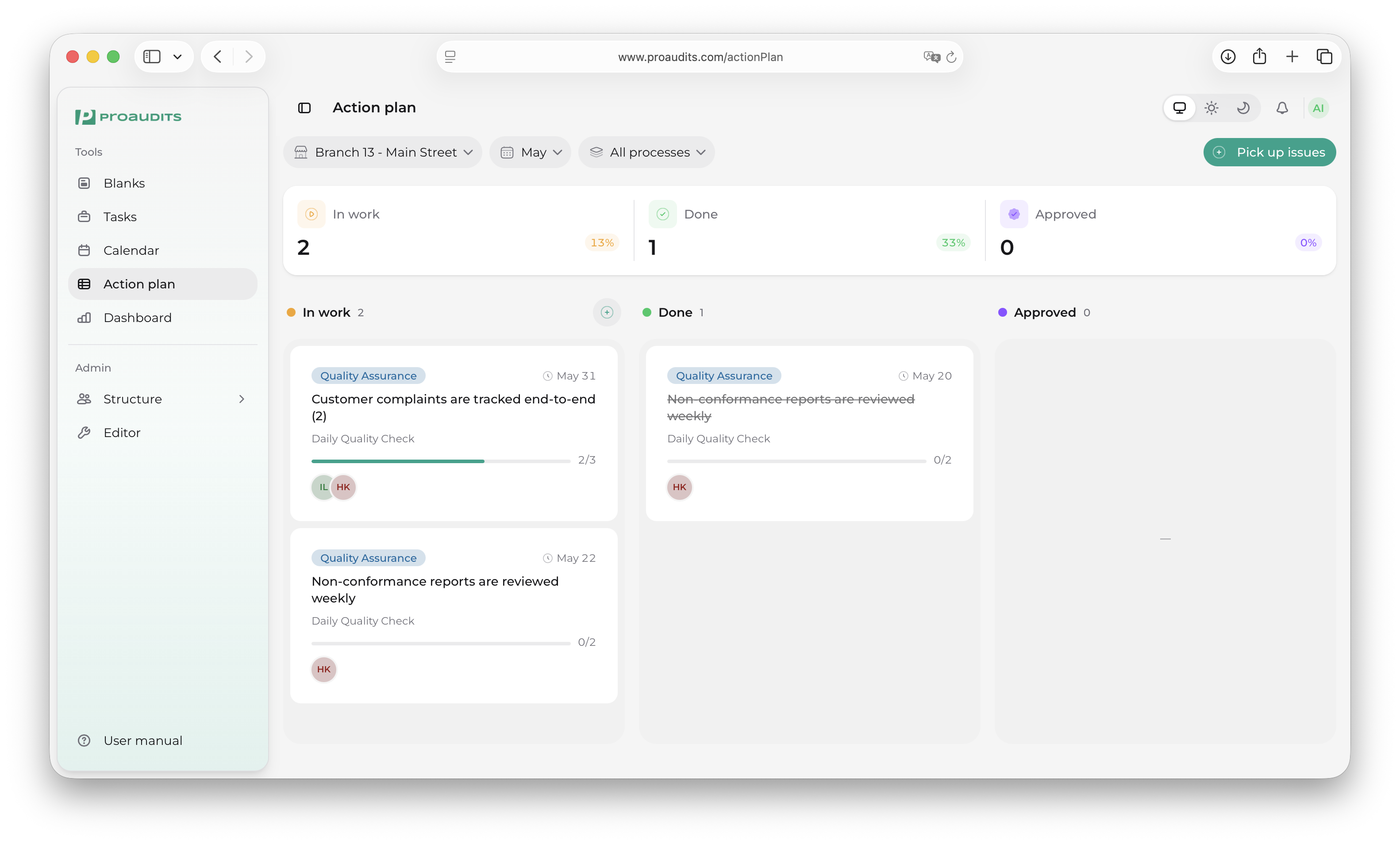
You can also filter by process (Service, Kitchen, etc.) using the multi-select. Cards from unchecked processes hide; the KPIs at the top adjust.
The three columns
Cards flow left to right:
- In progress — picked up, owners assigned, work happening.
- Finished — the team says the action is done.
- Approved — a manager has reviewed and signed off.
Drag a card with the mouse to move it between columns. The receiving column accepts the drop and updates the card's stage right away.
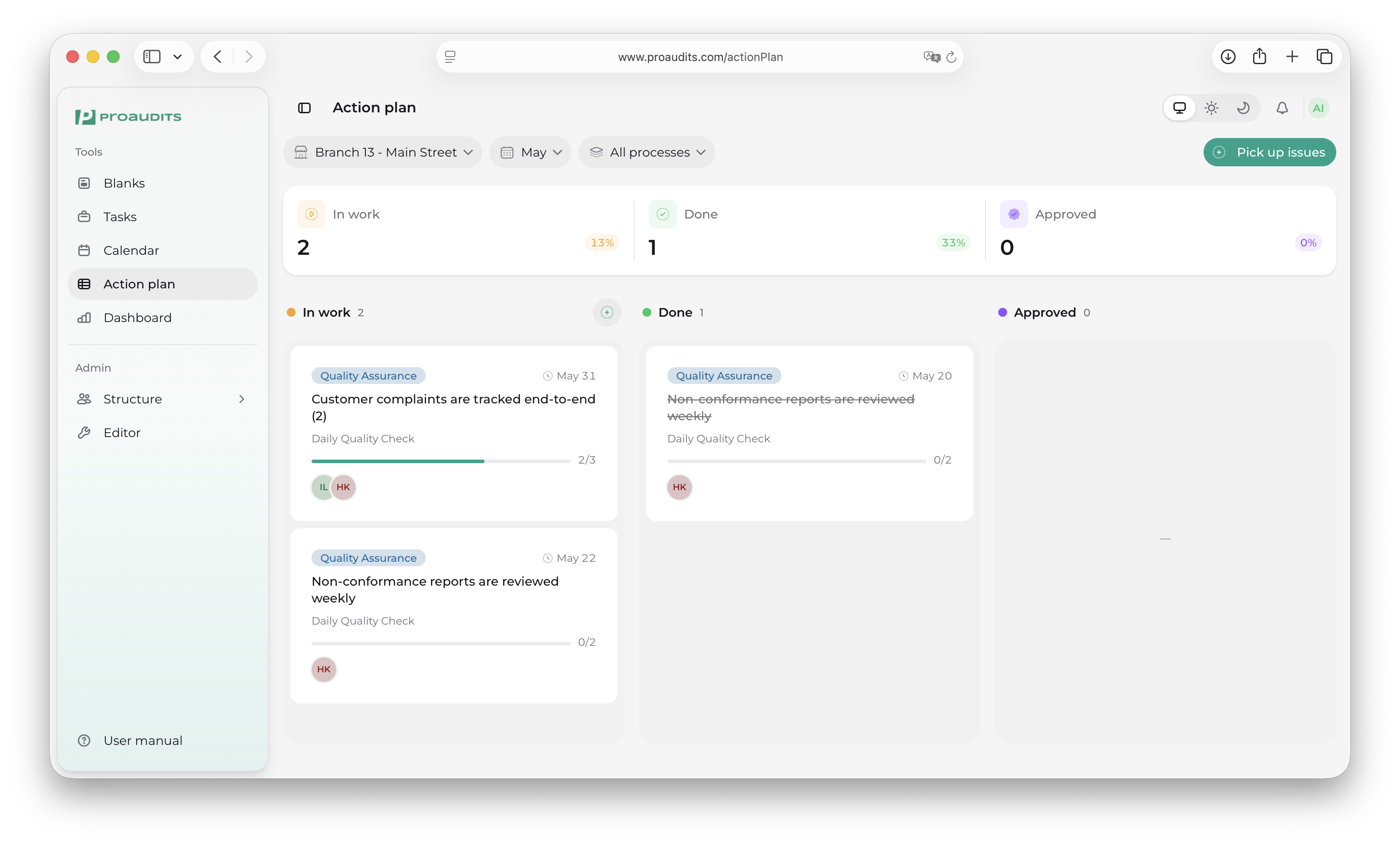
Anatomy of a card
Each card shows everything you need to triage it at a glance:
- A process tag in the process color.
- The finding — the wording the auditor used, or the wording you wrote for a generic issue.
- The audit name the finding came from (clickable to open the original audit).
- A progress bar — how many of the card's actions are done out of the total.
- The avatars of the responsible people.
- The deadline — the latest of all the deadlines on the card.
A single card
Where the cards come from
There are two ways an action lands on this board. Most cards arrive on their own; the rest are added by you.
1. Auto-created from "No" answers
This is by far the most common path, and it does not require any manual pickup.
When an auditor marks an item No during an audit — on the web or in the mobile app — the auditor (or the system auto-suggestion) attaches one or more responsible employees to that item — see Running an audit → Answering "No". The moment the audit is finished, ProAudits first assigns the template's responsible roles to any No item whose list the auditor never touched and is still empty (a list the auditor emptied on purpose is left alone). Then it walks every No item that has at least one responsible and:
- Creates a locked action per responsible employee. One item with two responsibles becomes two locked actions.
- Files them under a picked-up issue for the matching store + item + month combination — so multiple audits in the same month accumulate on the same card instead of cluttering the board.
- Drops the issue straight into the In progress column. There is no backlog step.
Audits run from a Certification blank are the exception: they never assign responsibles (the setting is disabled for certification blanks), so finishing one creates no locked actions.
Each audit creates a locked action for a given item and employee only once per card. If a finished audit is reopened and finished again, the actions it already created are not duplicated and their owners are not notified a second time — only people newly assigned in the meantime get a new locked action. If the audit was reopened to correct its store (or is finished again in a later month), its locked actions are created on the card for the store and month it now belongs to. A different audit of the same store and item in the same month still adds its own locked actions to the card, as described above.
Each locked action is created with these fields filled in automatically:
| Field | Source |
|---|---|
| Action text | The auditor's comment on the failed item. |
| Responsible employee | One of the names the auditor assigned. Locked — cannot be reassigned. |
| Deadline | Audit finish date + the item's days to respond (set by the template designer), or today + 7 days if no value was set. |
| Deadline lock | Locked when the template set days-to-respond; editable when the system fell back to the 7-day default. |
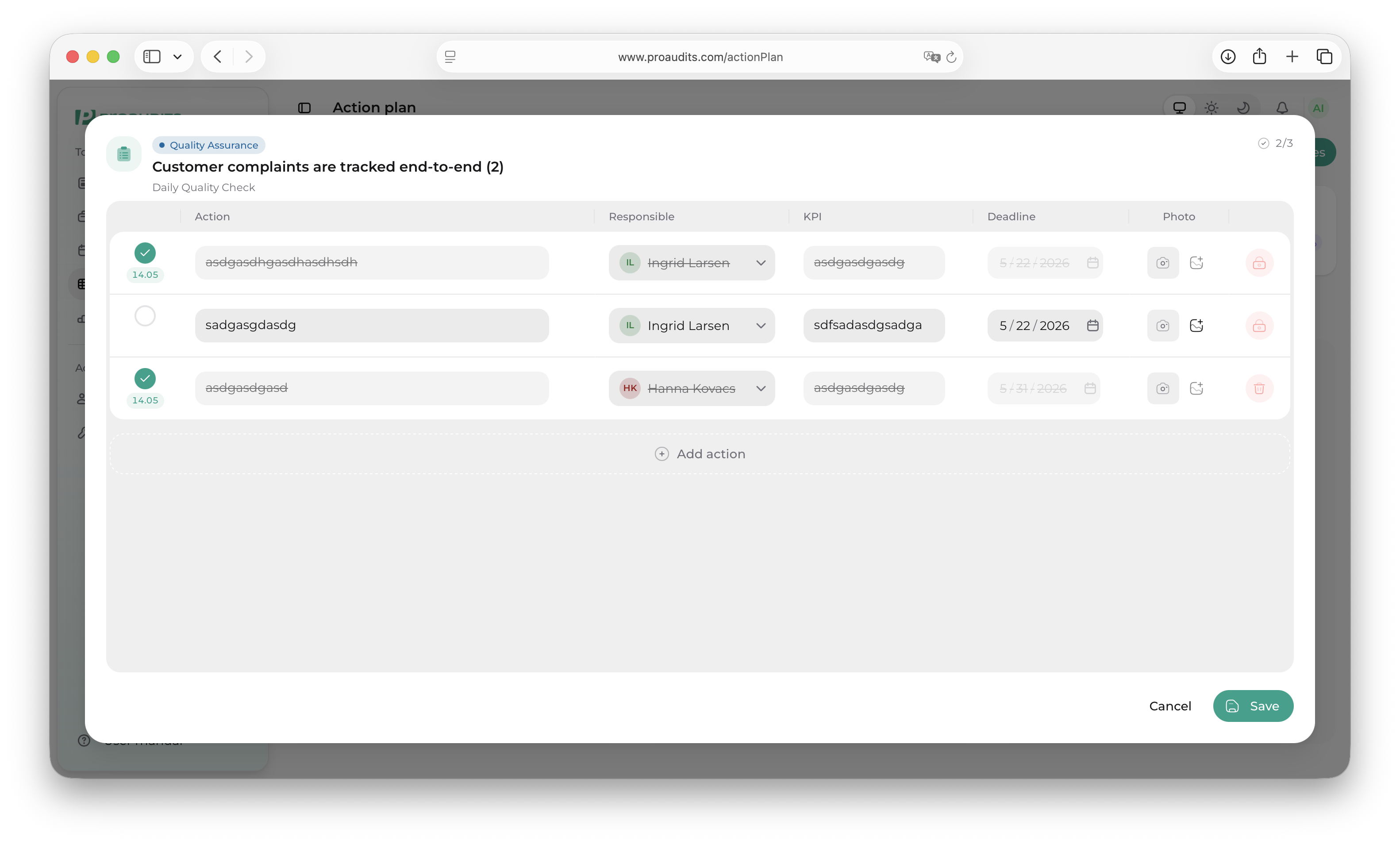
A locked action is the system saying "this work is committed and traceable" — you can still edit the action text and tick it off when done, but the responsible and (often) the deadline are pinned by the audit. To change those, you'd have to undo the audit, which isn't supported. The right move is to add a parallel free-form action on the same card instead.
A locked action on the board
2. Manually picked up from the backlog
Some "No" answers don't have a responsible employee assigned — the template designer didn't configure responsibility roles, nobody at the store holds those roles, the auditor deliberately cleared the list during the audit, or the audit was run from a Certification blank, which never assigns responsibles. Those findings still get recorded, but they don't auto-flow to the board.
This is what the Pick up issues button is for. Hit it in the toolbar and ProAudits opens a modal listing every finding from the month that hasn't been picked up yet.
Pick up issues modal
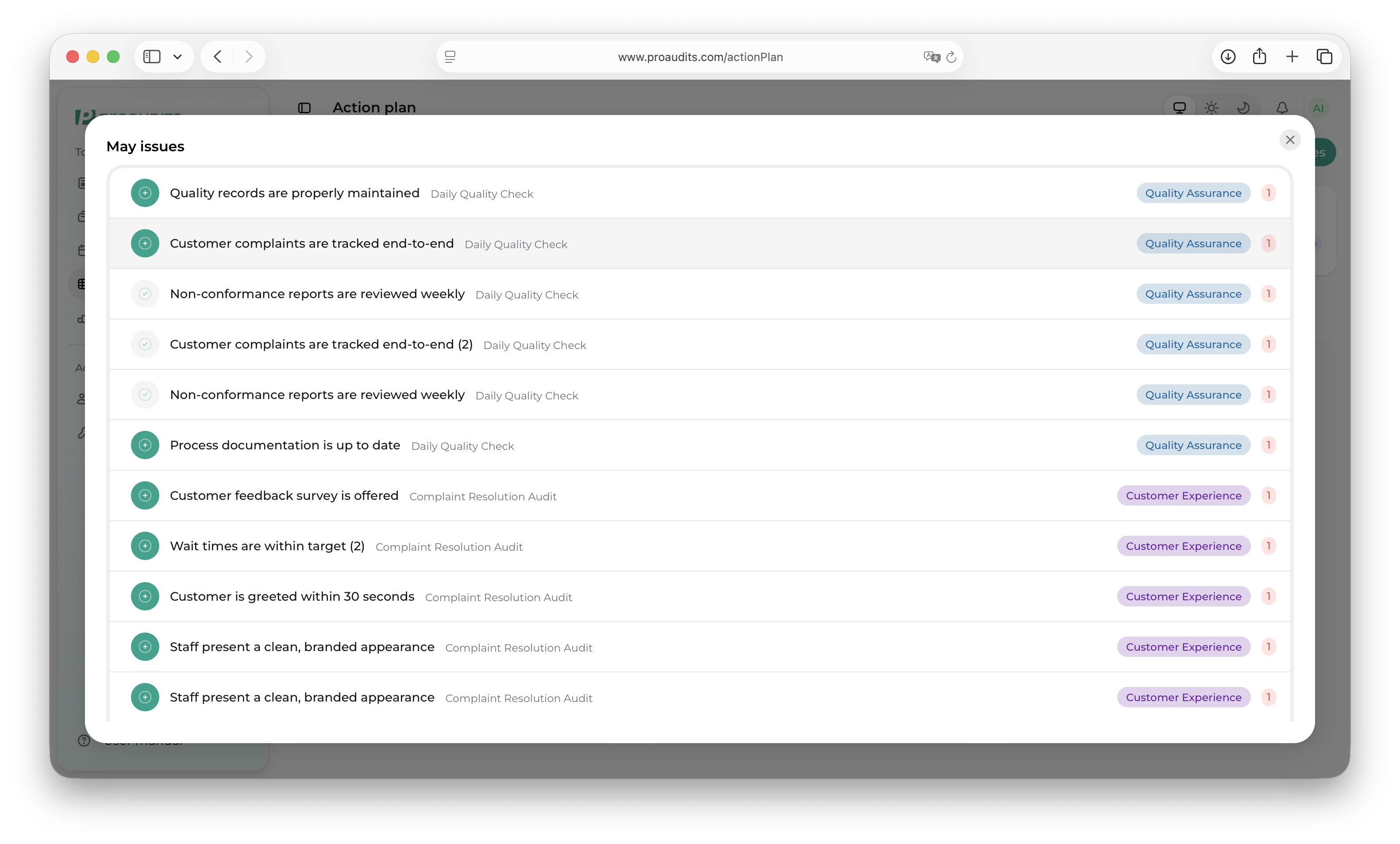
In the modal:
- Tick the findings you want on the board.
- Click Pick up to move them to In progress.
When you pick up an issue manually, it lands on the board with an empty action list — you then open the card and add free-form action rows yourself, choosing who owns each one and by when.
The findings you skip stay in the backlog. You can pick them up later or let them age out at the end of the month.
Adding a generic issue
Some issues don't come from audits — a customer complaint, a maintenance request, a staffing note. Use Add generic issue to create one from scratch.
Add generic issue
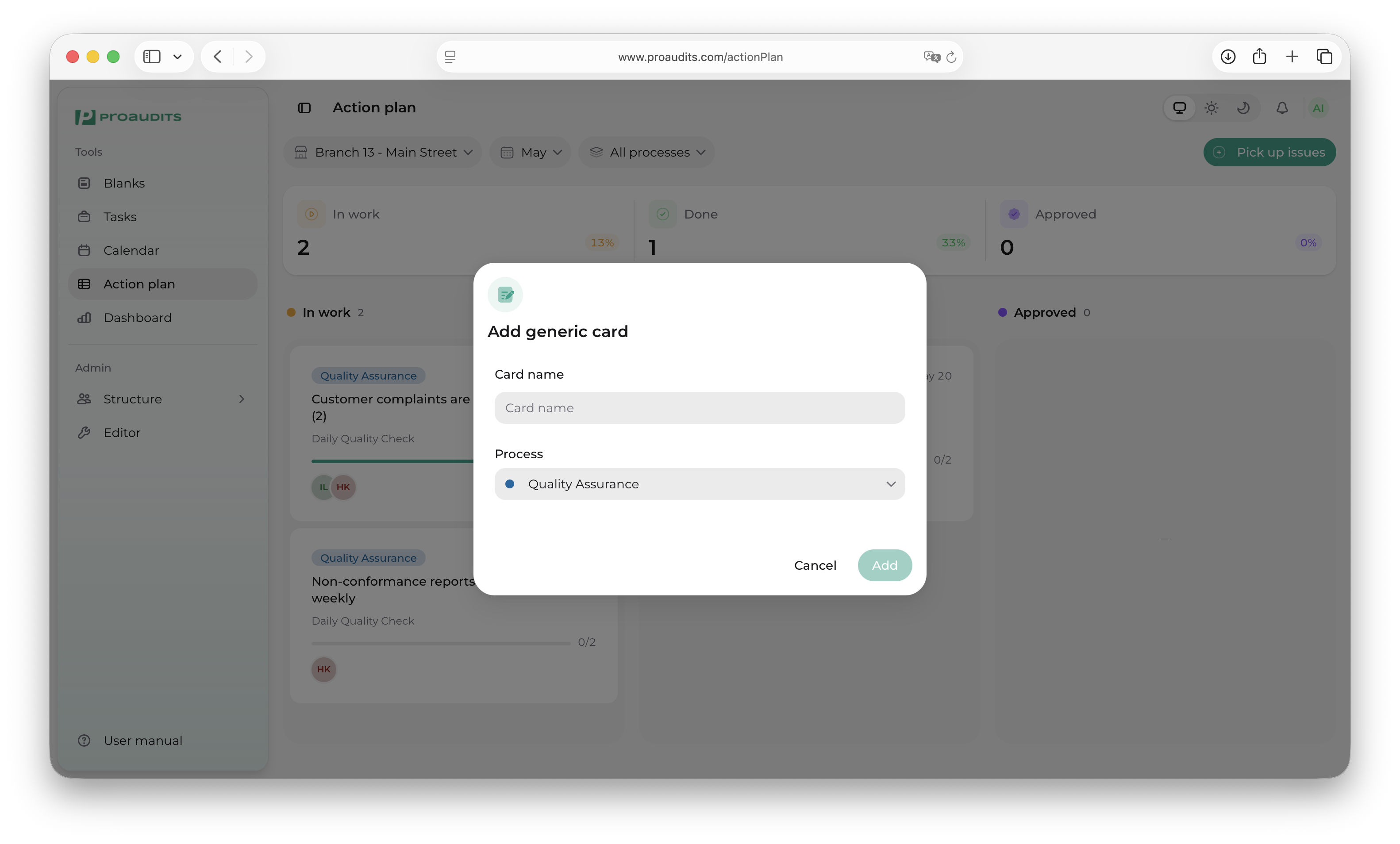
You give it:
- Free-form issue text.
- A process (so it gets the right color and filters correctly).
Generic issues are the only ones you can delete from the board — and only while they are still In progress. Audit-sourced findings can't be deleted; they can only move through the stages.
Editing the actions on a card
A finding can have multiple actions under it — one per responsible employee from the audit, plus any free-form rows you add later. Click any card to open the actions table.
Actions table
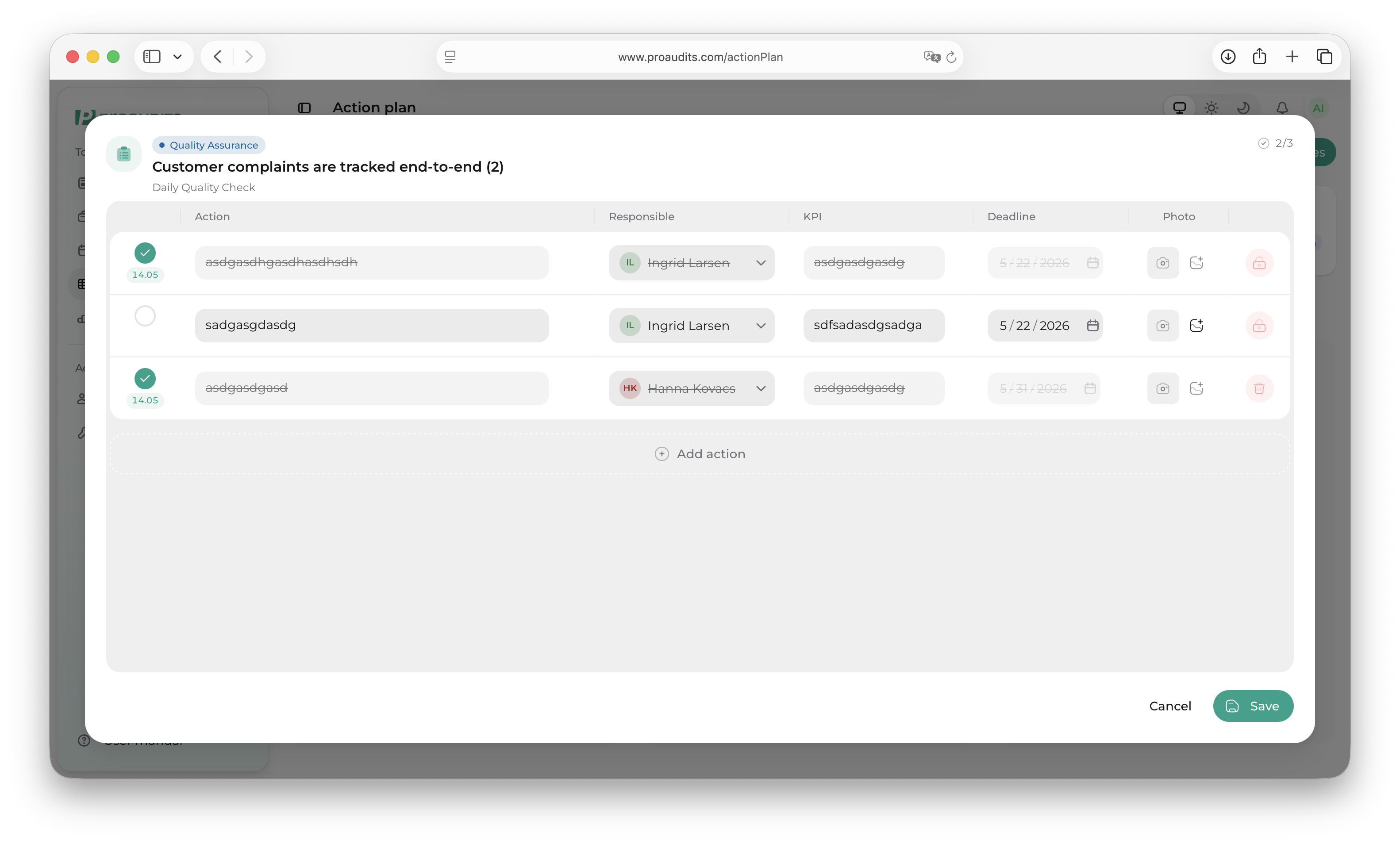
Each row holds:
- The action description.
- A deadline.
- The responsible employee.
- A completion checkbox.
- A proof photo slot.
Locked vs. free-form rows
- Locked rows are the ones auto-created when an audit was finished. The lock icon appears next to the responsible avatar. You can still edit the description, tick the completion checkbox, and upload a proof photo. The responsible is permanently locked to whoever the auditor assigned. The deadline is also locked if the template's days to respond was set; otherwise it's editable.
- Free-form rows are the ones you added manually — either from the Add row button at the bottom of the table, or by picking up an issue that arrived without responsibles. Every field on these rows is editable.
You can:
- Add new free-form action rows (the "+" at the bottom).
- Edit any unlocked field inline.
- Tick rows off as they finish.
- Upload a photo as proof.
When every row on a card is ticked complete, the card is ready to move to Finished. From there, a manager moves it to Approved.
The KPI strip
At the very top of the page sits a strip of four KPIs that summarise the month:
- Total issues picked up.
- % picked up — how many of the month's findings made it to the board (vs. ignored).
- % finished — of those picked up, how many are done.
- % approved — of those finished, how many were signed off.
Action plan KPIs
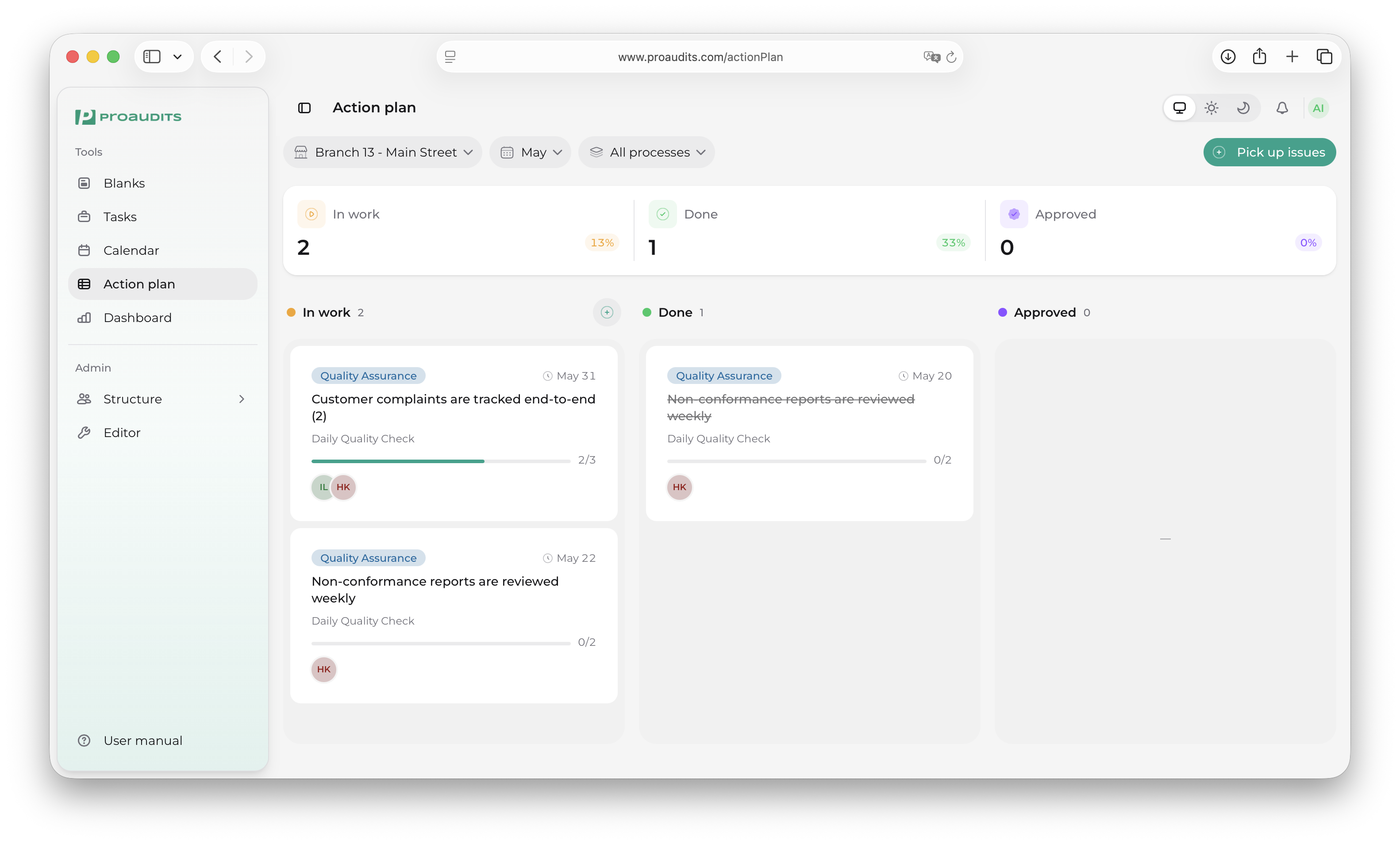
These same numbers also flow into the dashboard for trend tracking across months.
Who can do what
- Auditors see the board read-only and can edit cards from audits they ran.
- Area managers can pick up, edit, and move cards.
- Approvers (defined in roles) are the only ones who can move a card into Approved.
The board is a single source of truth
If a finding isn't on the board, it isn't being worked on. Make a habit of picking up issues weekly — it keeps the board honest and the team aligned on what's open.