Working with audits
Editor — blank content
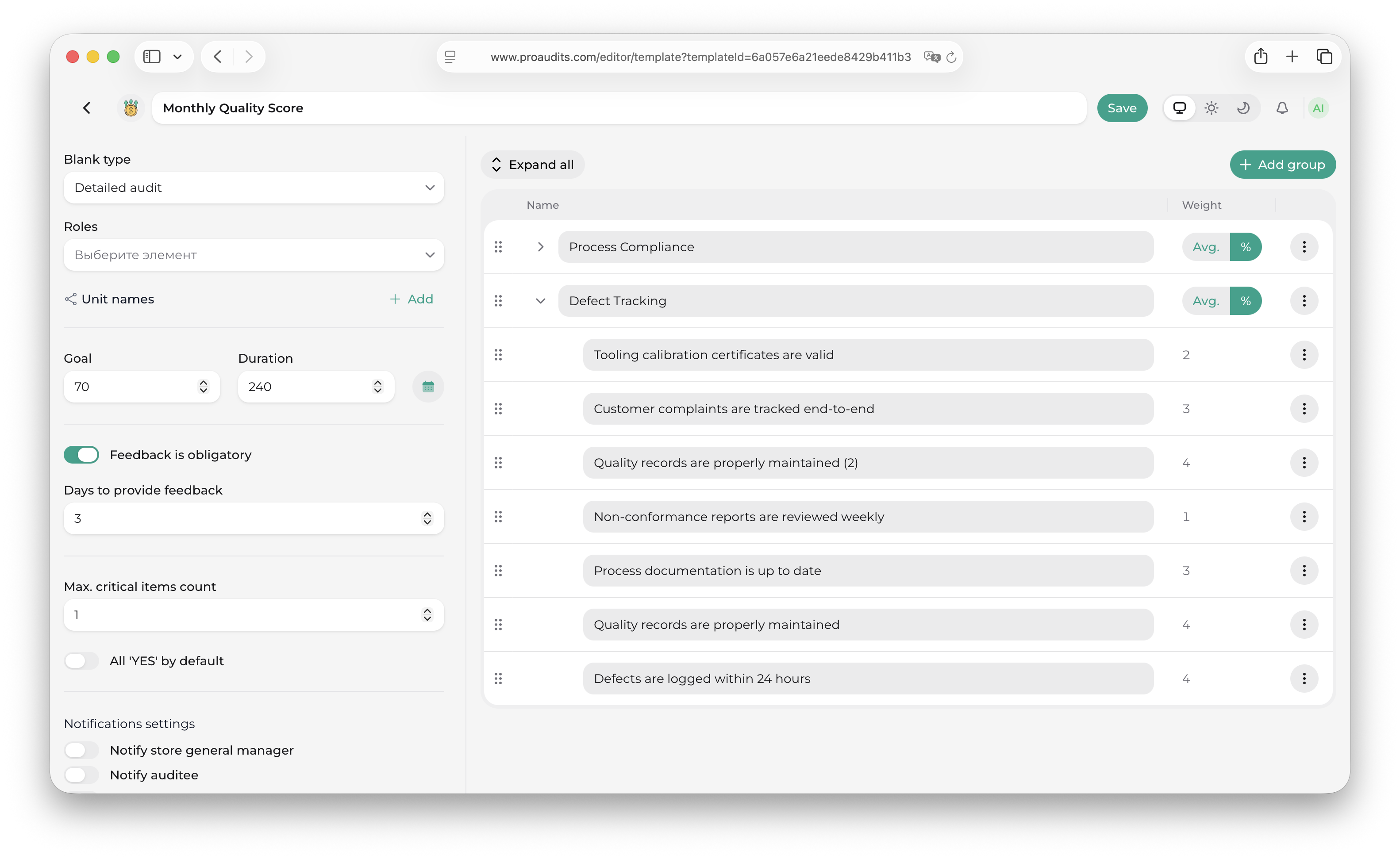
The blank content editor opens when you pick Edit Blank on any row in the Editor — processes & blanks page. Its URL is /editor/template?templateId=… — one template, one page. Everything about how an audit looks and who can run it lives here.
The screen is split into two regions:
- Left — the content tree (groups, items, sub-items).
- Right — the settings panel for the whole blank (type, roles, structure units, goal, duration, active flag, routines).
Blank content editor
The content tree
The body of the audit. Three levels deep:
- Groups — the sections an auditor scrolls through.
- Items — individual checks under a group.
- Sub-items — optional. Children of an item, used either as a free-form list (notes, observations) or as weighted children that roll up into the item's score.
Toolbar above the tree
- Expand all / Collapse all — toggle every group at once.
- Add group — adds a new group at the bottom of the tree, ready for naming.
Group-level actions
Each group row has an action menu on the right:
- Add item — appends a new item to this group.
- Rename — turns the group name into an inline editor.
- Delete — removes the group and everything inside it (confirmation required).
- Drag handle — grab the row to reorder groups up or down.
Item-level actions
Each item row offers:
- Edit Item — opens the item editor drawer (see next section).
- Delete — removes the item and any sub-items.
- Drag handle — reorder within the group, or drag the item onto another group to move it across.
Sub-item actions
Sub-items appear under an item when the item has any. They are added from inside the item editor drawer (see the Sub-items section below) and can be reordered or deleted from the same drawer.
The Вес (weight) column
Every item and every sub-item carries a weight that decides how much it contributes to the final score. Default is 1; raise it to highlight critical checks (a broken fire exit), lower it for nice-to-haves. If an item has weighted sub-items, the item's own weight is auto-calculated from theirs and becomes read-only.
The item editor drawer
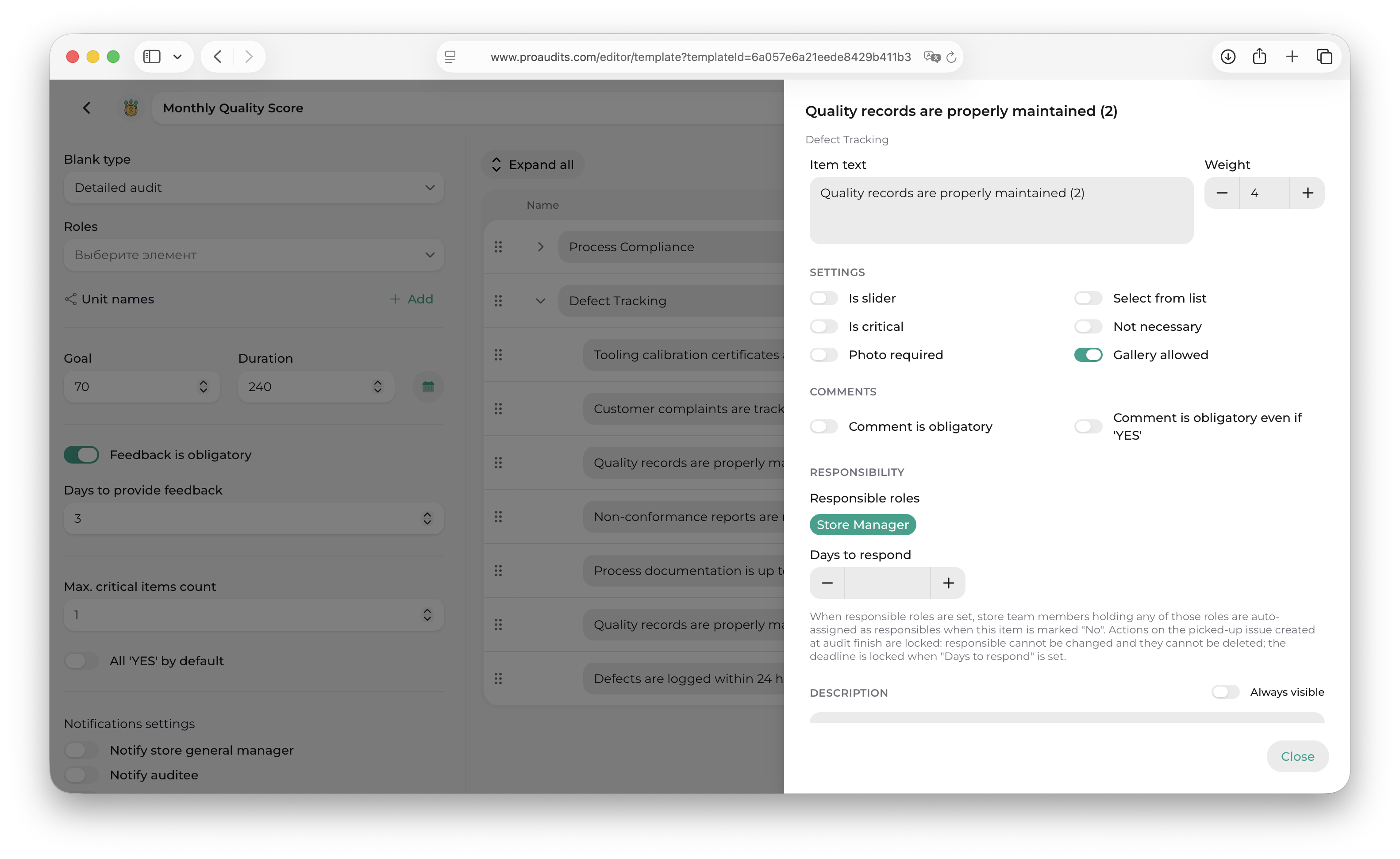
Click Edit Item to open the right-side drawer. Everything about a single item lives here.
Item editor drawer
Header
The top of the drawer shows the item text and the group it belongs to.
Text & weight
- Item text — a multi-line, auto-growing text field. Holds the question or check the auditor will see.
- Weight — number input, min
0.1, max100, step0.1. Disabled when the item has weighted sub-items (the weight is then derived from them).
Toggle switches
Six toggles that change how the item behaves at audit time:
| Toggle | What it does |
|---|---|
| Is Slider | Item is scored with a numeric slider instead of yes/no. Reveals min/max/step fields below. |
| Drop Down List | Item shows a drop-down of preset answers instead of a free choice. |
| Is Critical | A failure on this item flags the whole audit as critical. |
| Is Not Necessary | The item is optional — auditors can leave it blank without failing the readiness check. |
| Is Photo Required | Auditors must attach at least one photo to score the item. |
| Is Photo Gallery Available | Lets auditors attach several photos rather than a single one. |
Slider settings (only when Is Slider is on)
- Min value — lowest number on the slider.
- Max value — highest.
- Step — increment between ticks.
Reference photos
A small uploader at the bottom of the drawer lets you attach reference photos — examples of what "good" looks like for this item. Auditors see them in the audit so they have a visual baseline.
- Add photo — upload from disk.
- Each uploaded photo gets a thumbnail; click the × on it to remove.
Responsibility
The bottom of the drawer holds the Responsibility section — the single most important control for turning failed items into follow-up work. It has two fields:
- Responsible roles — multi-select. Pick the roles that should own a failure of this item.
- Days to respond — number input. The deadline (in days, counted from the audit's finish date) that ProAudits will stamp on every action created from this item. Leave it empty to use the system default of 7 days.
Responsibility section in the item drawer
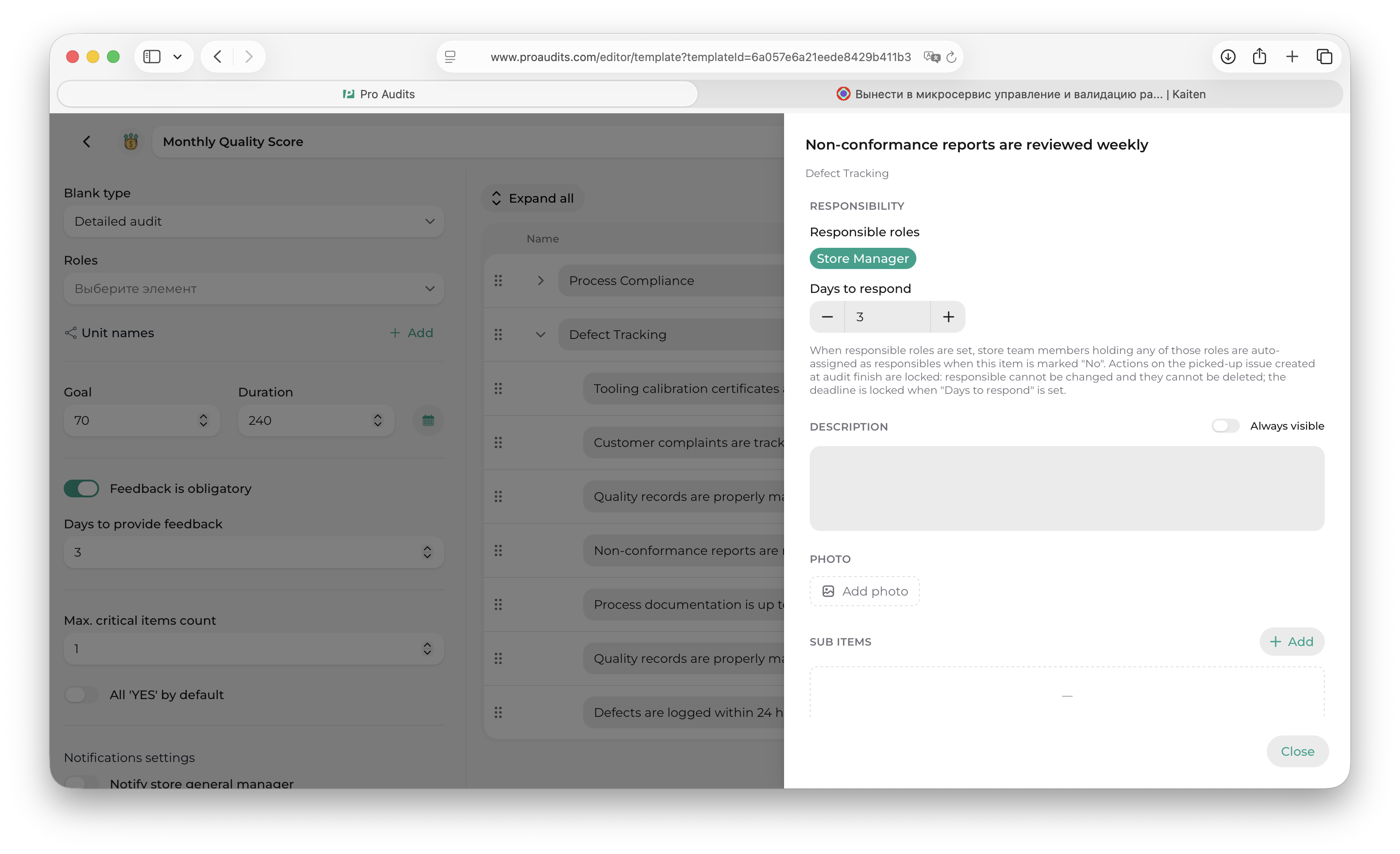
The roles drop-down is deliberately narrow: only Shift manager and Store manager level roles are selectable. These are the levels ProAudits considers "on-site accountable" — supervisors who are physically present and own day-to-day quality. Auditors, area managers, and admins are intentionally absent here; they investigate and approve, they don't fix.
You can pick any number of roles per item (one, two, three…) — when the item is answered No, every employee at the store who holds one of these roles becomes a candidate responsible. Leave the list empty and the item simply fails silently — no responsible assignment, no automatic action.
The days to respond field is your deadline policy for this specific check: short for safety-critical items (a fire-exit blockage should be resolved today), longer for cosmetic items (a faded sign can wait a week or two). When it's filled in, the deadline that ends up on the auto-created action plan card is locked — the responsible employee can't move it. Leave it empty and the deadline lands at 7 days from audit finish and stays editable on the card.
Certification blanks don't assign responsibles
When the blank's type is Certification, the whole Responsibility section is greyed out with the note "Responsibles are not assigned in certification blanks" — on the web and in the mobile app. Roles and days to respond picked earlier stay visible and are kept (switch the blank to another type and they apply again), but audits run from a certification blank never assign responsibles to No items and never create locked actions on the Action plan.
Sub-items
Sub-items appear as a list under the item's own settings. Use the + Add sub-item button below the list to add a new one. Each sub-item has its own text and weight; drag the handle to reorder. Sub-items inherit the parent item's toggles unless you override them.
The settings panel (right side)
This panel scopes the whole blank — not individual items.
Settings panel
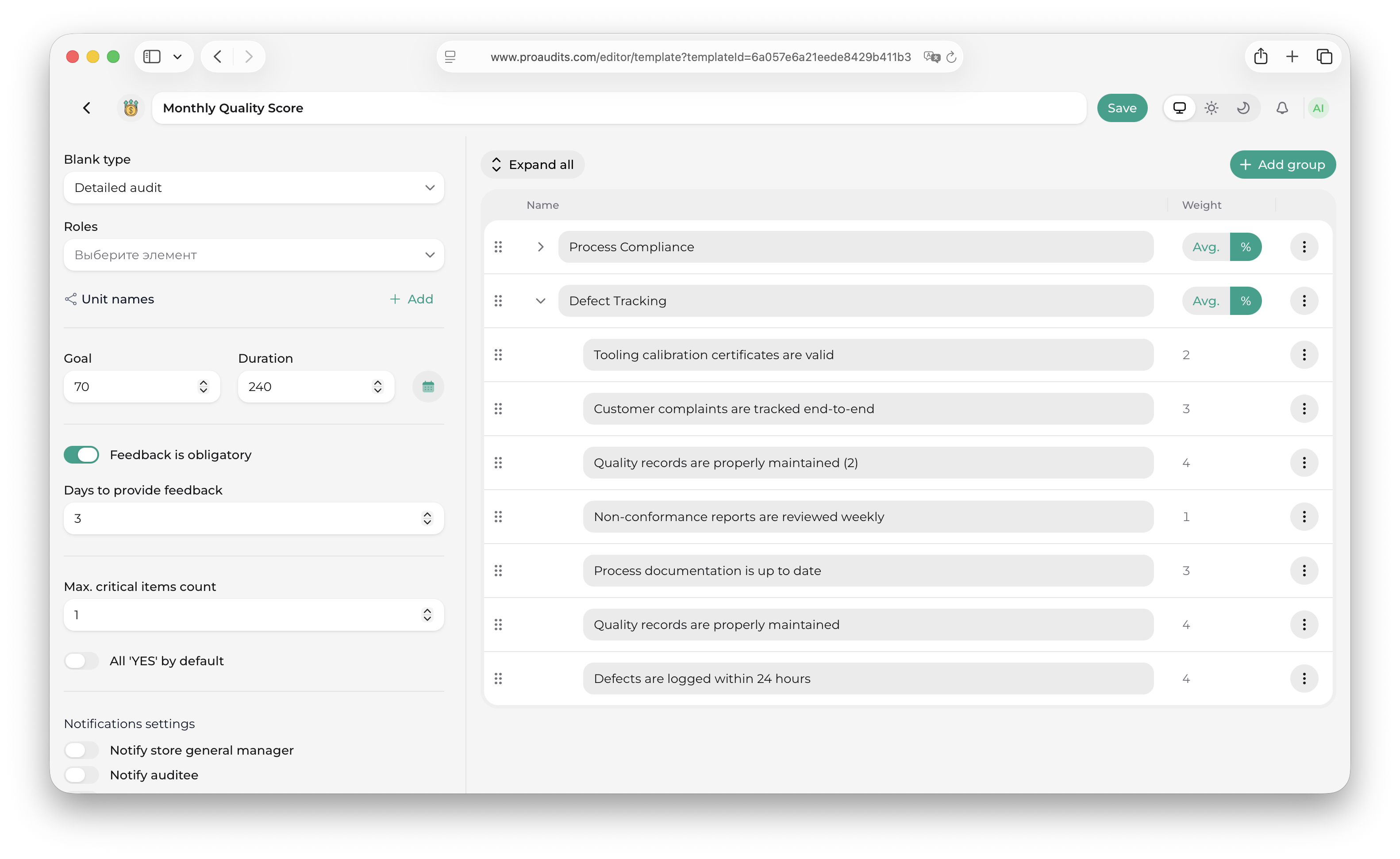
Blank type
A drop-down that picks the audit shape:
- One-page checklist — short, single-screen audit. Best for quick daily checks.
- Detailed audit — full multi-section audit with grouping, weights, photos, comments. The most common choice.
- Certification — formal, longer audit usually paired with sign-off and surfaced under the Certifications tab on Blanks. Certification blanks don't assign responsibles to failed items, so their audits create no locked actions — the item-level Responsibility settings are disabled for them.
Changing the type re-renders the audit experience for future runs from this blank.
Roles
A multi-select of every custom role you have set up in Roles, shown with their level. Tick the roles you want to allow.
- If at least one role is ticked, only those roles see this blank in their Blanks catalogue.
- The list filters out Employee-level roles — base employees can never be granted the right to run blanks.
- Removing every ticked role makes the blank invisible to everyone; that is the right move if you want to retire a blank without deleting it.
Structure units
A list of store / department names, each one an autocomplete that searches your org tree (the same tree managed in Structure).
- Each row picks one unit from the autocomplete.
- The Add button appends a new empty row. It is disabled until every existing row has a value, so you can't end up with empty entries.
- The × button on a row removes that unit.
The rule:
- If at least one unit is in the list, only those units can see and run this blank.
- If the list is empty, every unit can see it. Leaving the list empty is therefore the right default for company-wide blanks.
Two access gates
A user has to pass both gates to see a blank: their role must be in the Roles list, and the unit they belong to must be in the Structure units list (or the list must be empty). Use the two gates together to scope a blank precisely — e.g. "only Store managers in the East region".
Goal
A number field expressed as a percentage (0–100). It's the target score for this blank — the dashboard compares actual results against it and flags audits that came in below.
Duration
A number field in minutes — your estimate of how long the audit takes. It's shown on the blank card in Blanks and used by the Calendar when blocking out time for routine-driven visits.
Is Active
A toggle. When off, the blank disappears from Blanks for everyone — audits in progress are unaffected, but no new ones can start. Use it to pause a blank without deleting it (rolling out a v2, retiring a seasonal check).
Routines button
A calendar-icon button that opens the Routines editor modal. The button uses the brand teal color when at least one routine exists on this blank, and a neutral gray when there are none.
Routines — recurring schedules
Routines tell ProAudits to drop this blank's audit into the right calendars on a cadence. Open the modal from the Routines button.
Routines editor
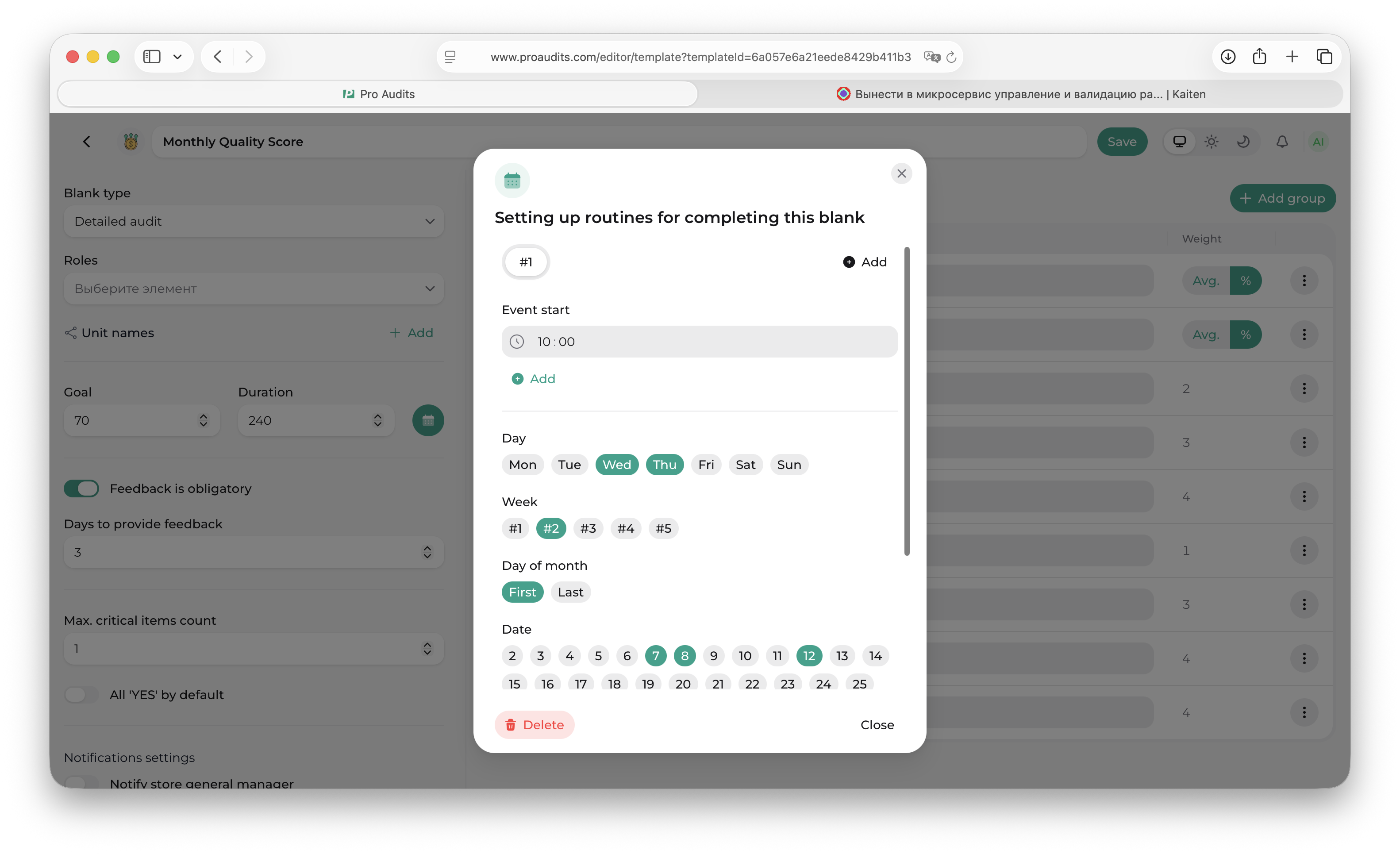
Tabs — one per routine
Each routine is a tab labelled #1, #2, #3… A blank can have as many routines as you need (e.g. one weekly walk, one monthly deep audit). The current routine is highlighted; click another tab to switch.
When a blank has no routines yet, the modal shows a single Add routine button. Click it and tab #1 appears.
Per-routine form
Inside each tab, five fields decide when the audit should fire:
- Week days — multi-select Mon–Sun.
- Weeks in month — multi-select (1st, 2nd, 3rd, 4th, 5th, last…).
- Dates of month — multi-select day numbers 1–31, for routines tied to specific dates.
- Roles — which custom roles get the audit assigned to them when the routine fires.
- Time — the time of day the audit shows up on the calendar.
You combine these to express almost any schedule:
- Every Monday at 09:00 for store managers — week days = Mon, time = 09:00, roles = Store manager. Leave the rest empty.
- First Friday of every month — week days = Fri, weeks in month = 1st.
- 15th and 30th of each month at 14:00 — dates of month = 15, 30, time = 14:00.
Add / delete routines
- Add routine (header) — creates a new empty routine and switches to its tab.
- Delete routine (footer) — removes the routine currently selected; ProAudits switches you to the previous tab when it does.
- Close — dismisses the modal. Saving happens as you type.
Navbar — actions for the whole page
At the top of the editor you'll find:
- Back — return to Editor — processes & blanks.
- Expand all / Collapse all — same as the toolbar above the tree.
Saving is autosave — there is no Save button. Edits commit in the background and the Saving… indicator (shared with the processes page) shows when a write is in flight.
What's affected by your changes
| Edit | Where you'll see it |
|---|---|
| Group / item text, weight | Next audit started from this blank |
| Toggles (slider, photo required, critical, etc.) | Next audit only — in-progress audits keep their original behaviour |
| Roles or Structure units | Immediately — the blank appears or disappears in Blanks for affected users at their next refresh |
| Goal / duration | Dashboard and Blanks card update on next refresh |
| Routines | Next firing window of the schedule |
| Is Active = off | Blank vanishes from Blanks for everyone, immediately |
That's the whole blank editor. Everything that an auditor sees during a visit, and every decision about who can run it, is set here.