Planning & follow-up
Calendar
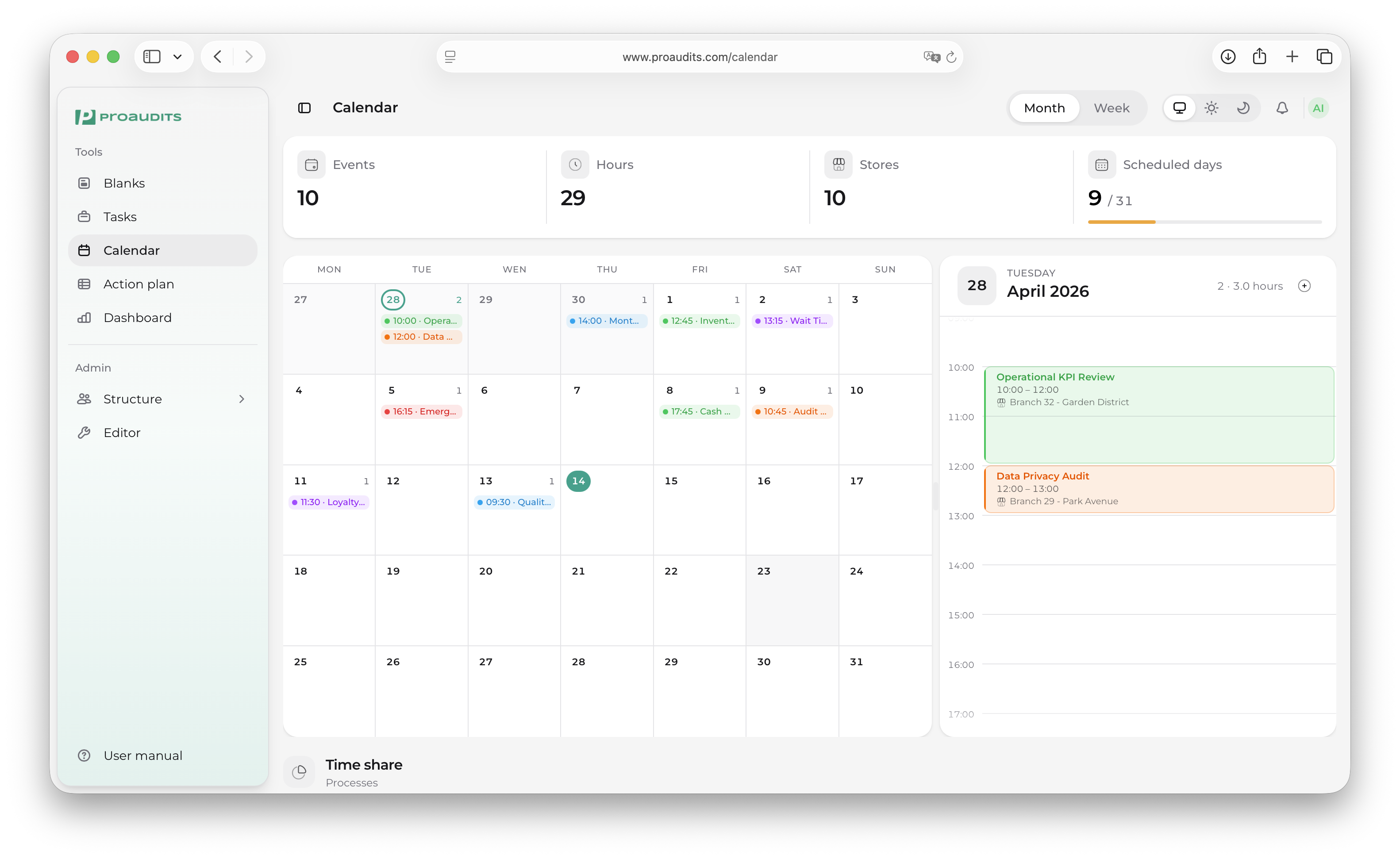
The Calendar is the shared planner for your audits. It answers two questions at a glance: "what is on for today?" and "where am I going next week?".
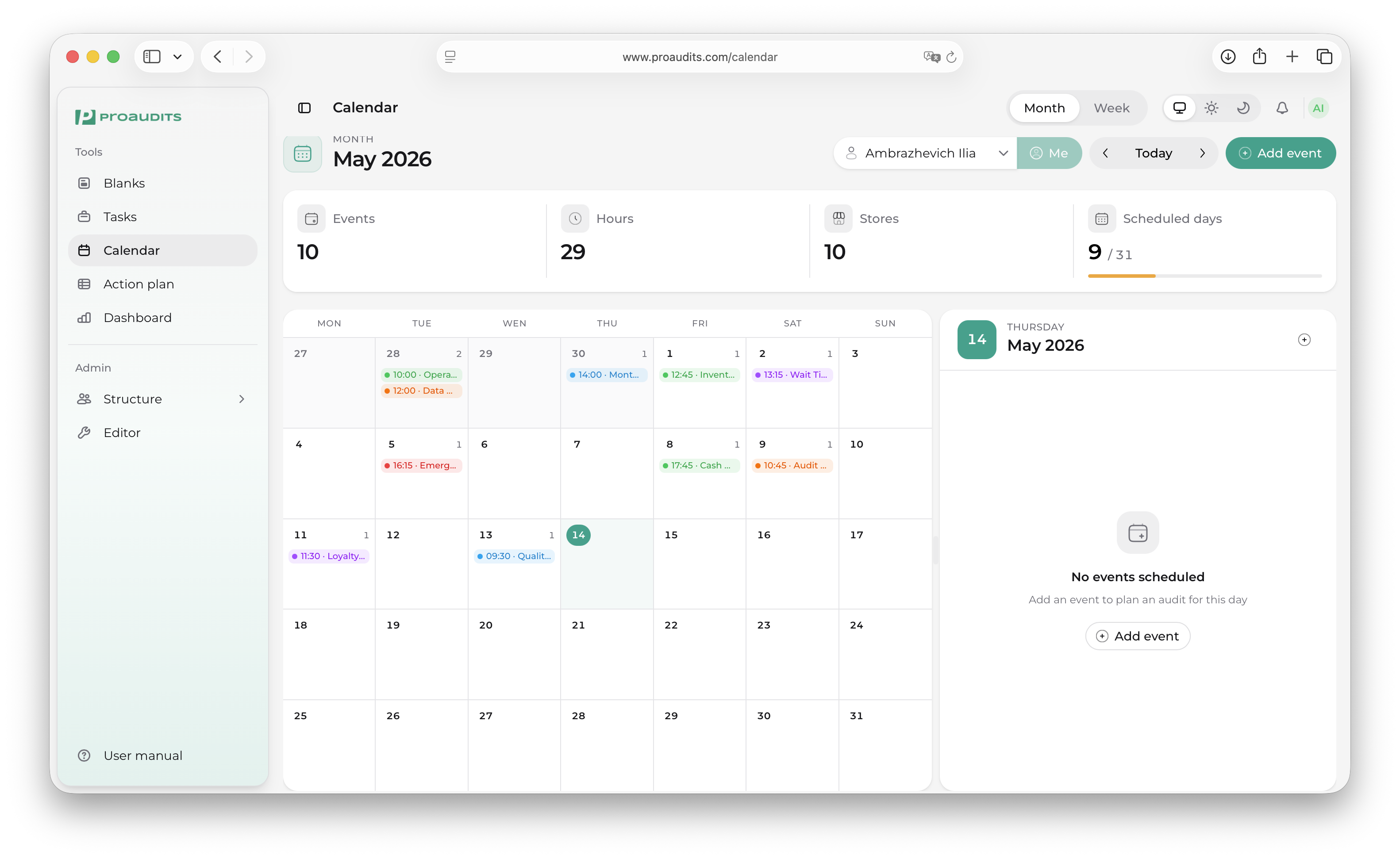
Calendar — month view
Choosing a view
The toolbar lets you pick how much time to see on screen at once:
- Month — the full month grid. Best for planning.
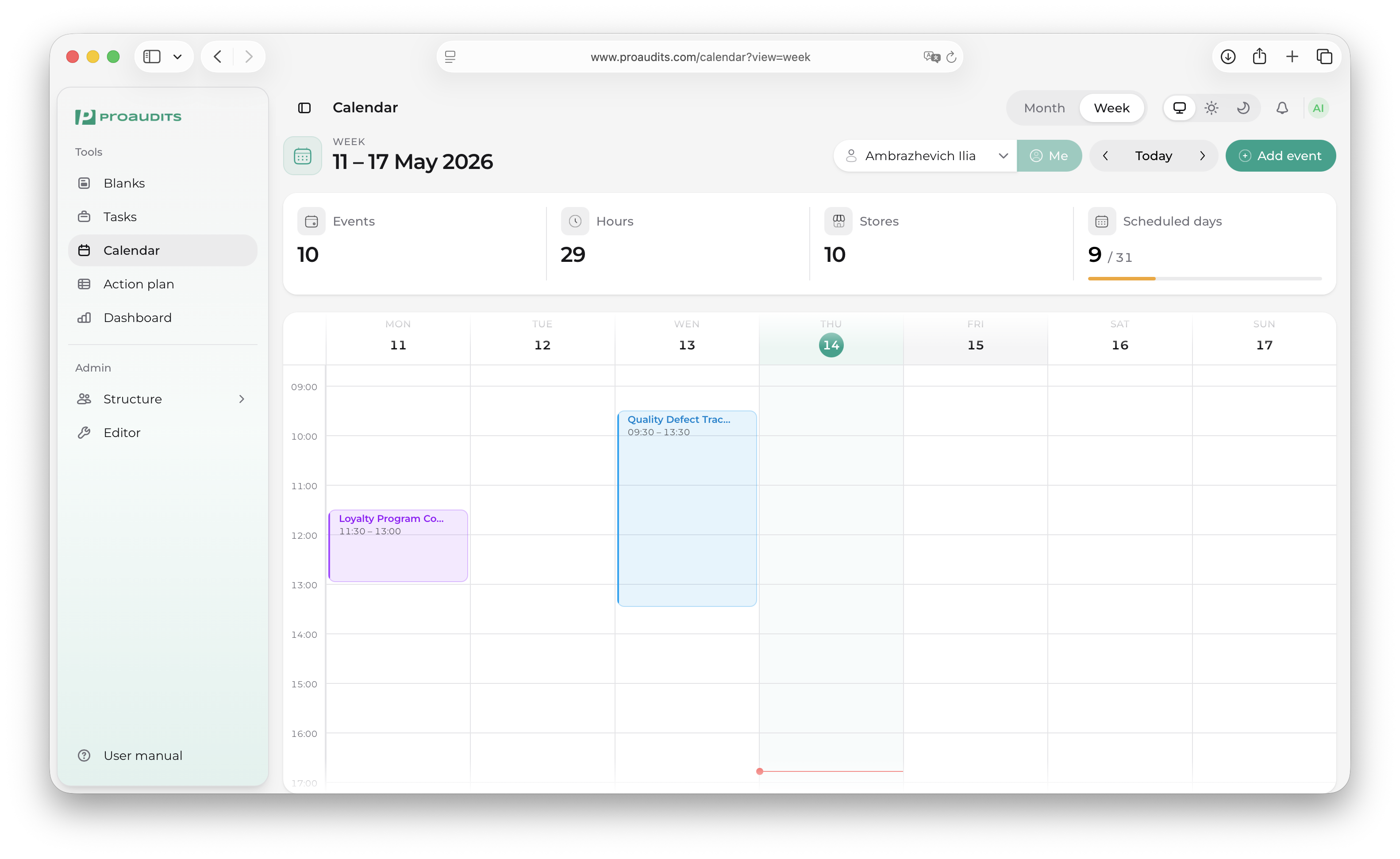
- Week — a 7-day timeline with hours down the side. Best for daily handovers.
- Day — a side panel that shows the day in detail; opens automatically when you click a date.
Calendar — week view
Calendar — day view
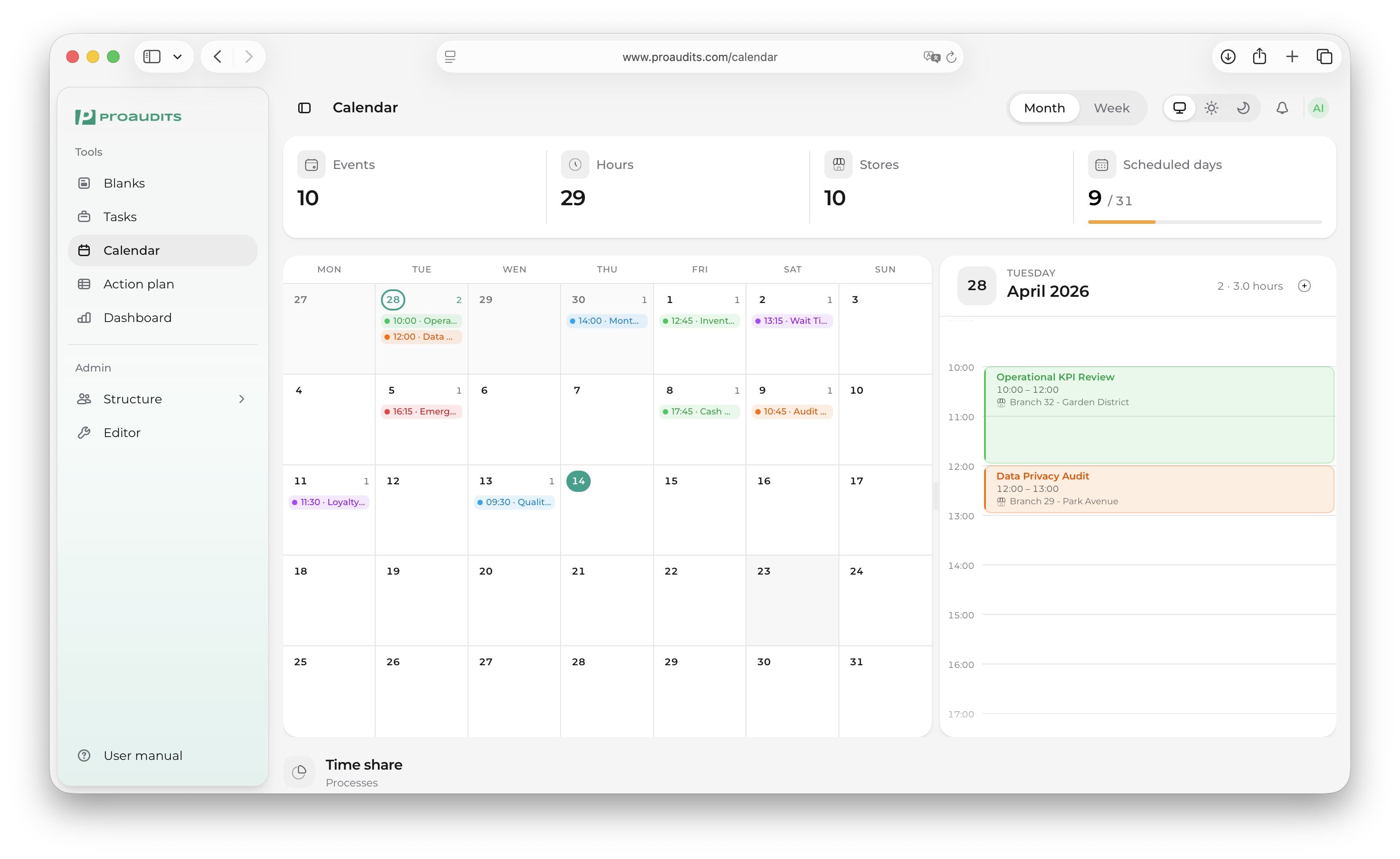
Move through time with the prev / next arrows in the toolbar, or jump back to Today at any time.
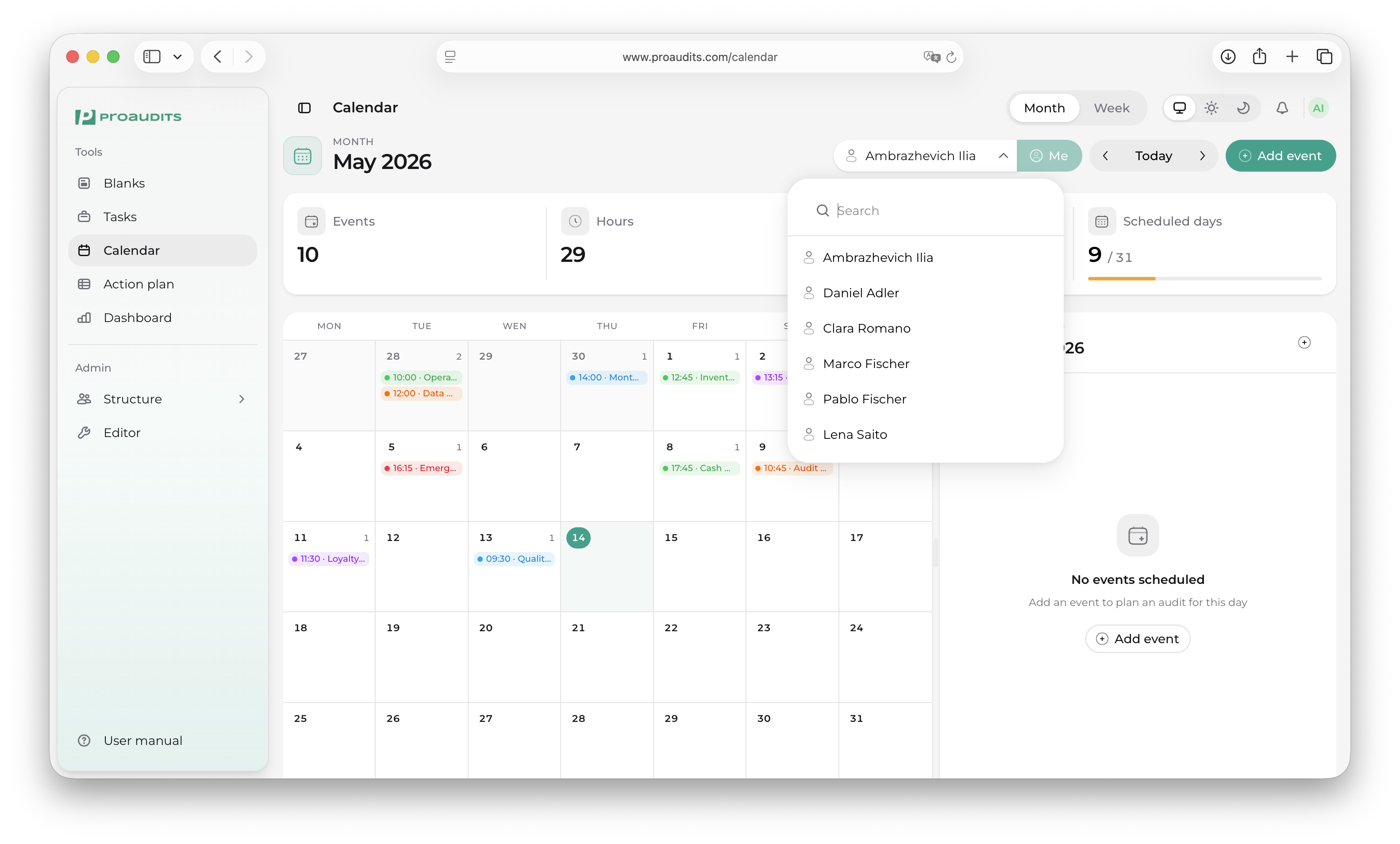
Filtering by auditor
The auditor selector at the top filters the calendar to a single person's visits. Useful when an area manager wants to see what one of their auditors has on this week, or when an auditor wants only their own line.
Auditor filter
Calendar metrics
Just above the calendar, ProAudits surfaces four numbers for the period you are looking at:
- Events — how many visits are scheduled.
- Hours — total auditor-hours planned.
- Stores covered — distinct locations being visited.
- Booked days — how many days have at least one audit.
Calendar metrics row
The smaller panel on the right of the calendar is Process distribution — a pie of which processes are most and least scheduled, so you can spot when one category is being neglected.
Adding an event
Click any empty slot or use the Add event button to open the Add event drawer.
Add event drawer
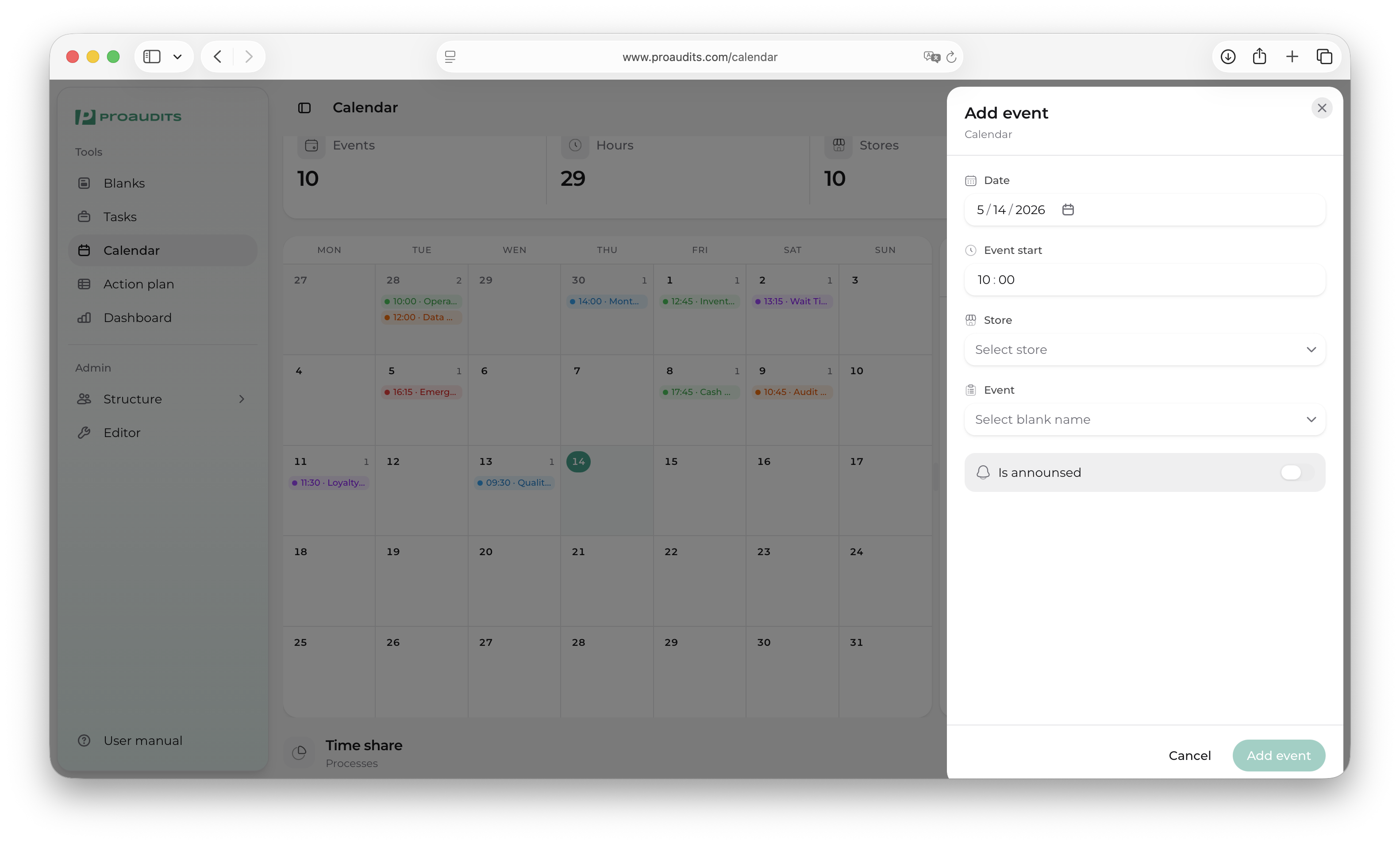
Pick:
- The date and time.
- The template to run.
- The store to run it in.
- The auditor to assign.
- Whether to announce the visit (sends a notification to the store) or keep it surprise.
Save the drawer and the new event lands on the calendar immediately. The auditor gets a notification, and if "announce" was on, the store does too.
Editing or moving an event
Click a scheduled event in the calendar to reopen the same drawer with its details pre-filled. Change anything you need to — date, auditor, template — and save. Changes propagate to the auditor's calendar at once.
Deleting an event
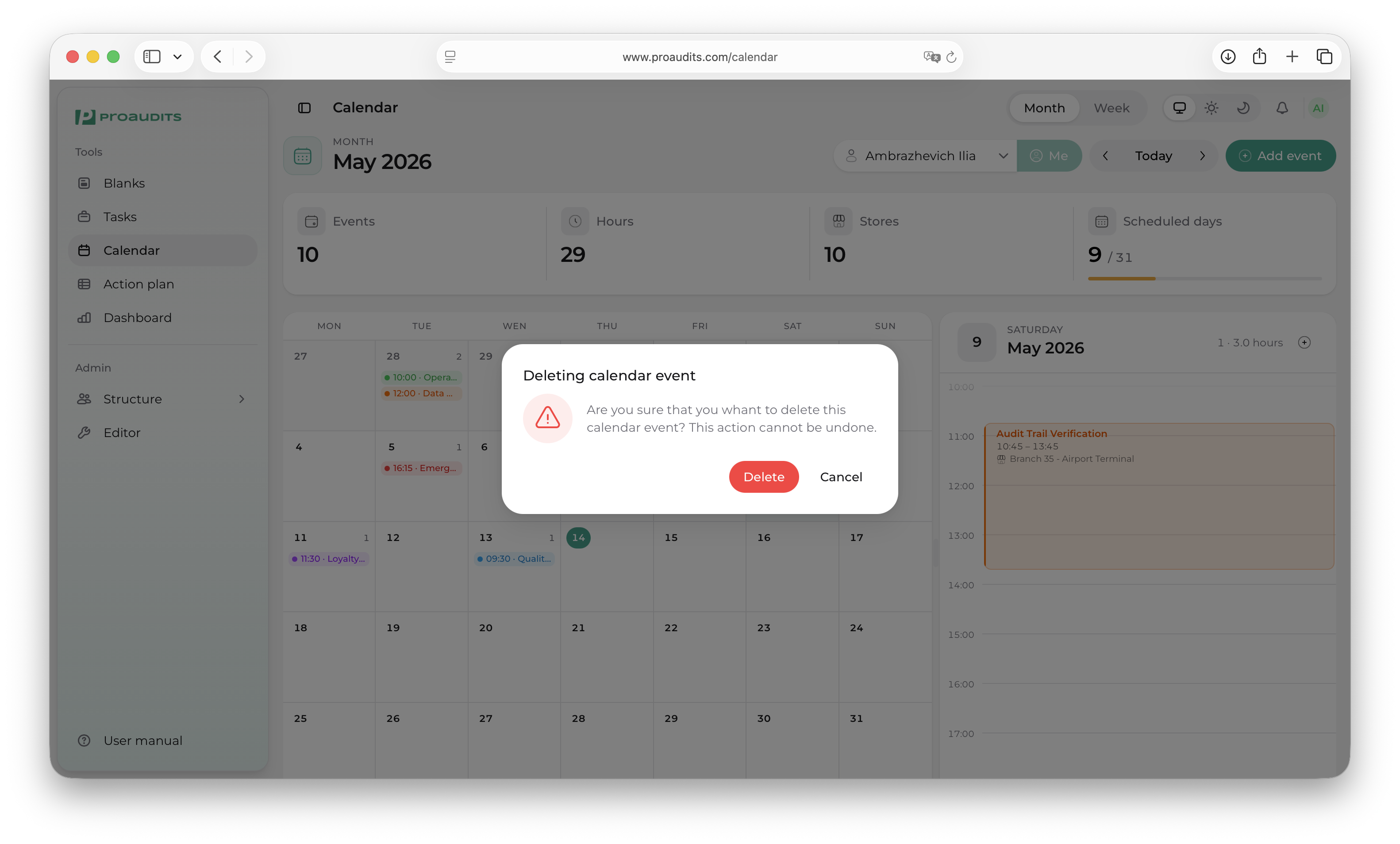
The drawer also has a Delete button. Hitting it shows a small confirmation — once confirmed, the visit is gone from everyone's calendar.
Delete confirmation
Holidays and time off
ProAudits won't stop you from scheduling on a holiday — that decision is yours. The auditor filter is the best way to spot conflicts before you save.