Administration
Structure
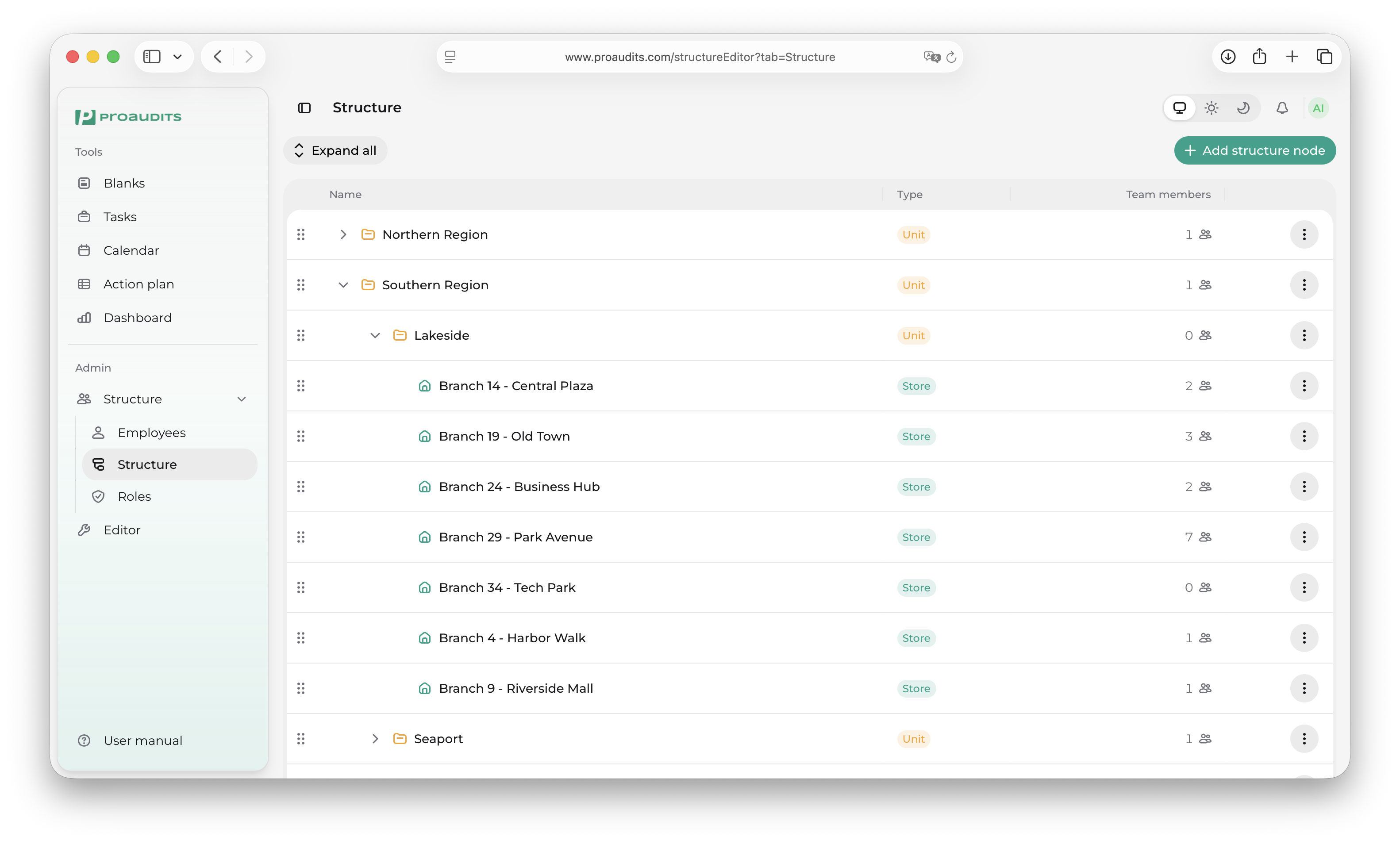
The Structure tab inside the Structure editor visualises your company as a tree. Each node is an employee or a department; edges show who reports to whom. The structure decides whose audits roll into whose dashboard — so a clean chart pays dividends everywhere else in the app.
Structure tab
Reading the chart
The tree is anchored at the top by your company root, then branches out by department and team. Each node shows:
- Avatar and name (or department name).
- The role of the person (when it's a person).
- A small count of direct reports (when it's a manager).
Nodes collapse to keep the chart readable. Click the chevron on any node to expand or hide its children.
Reorganising
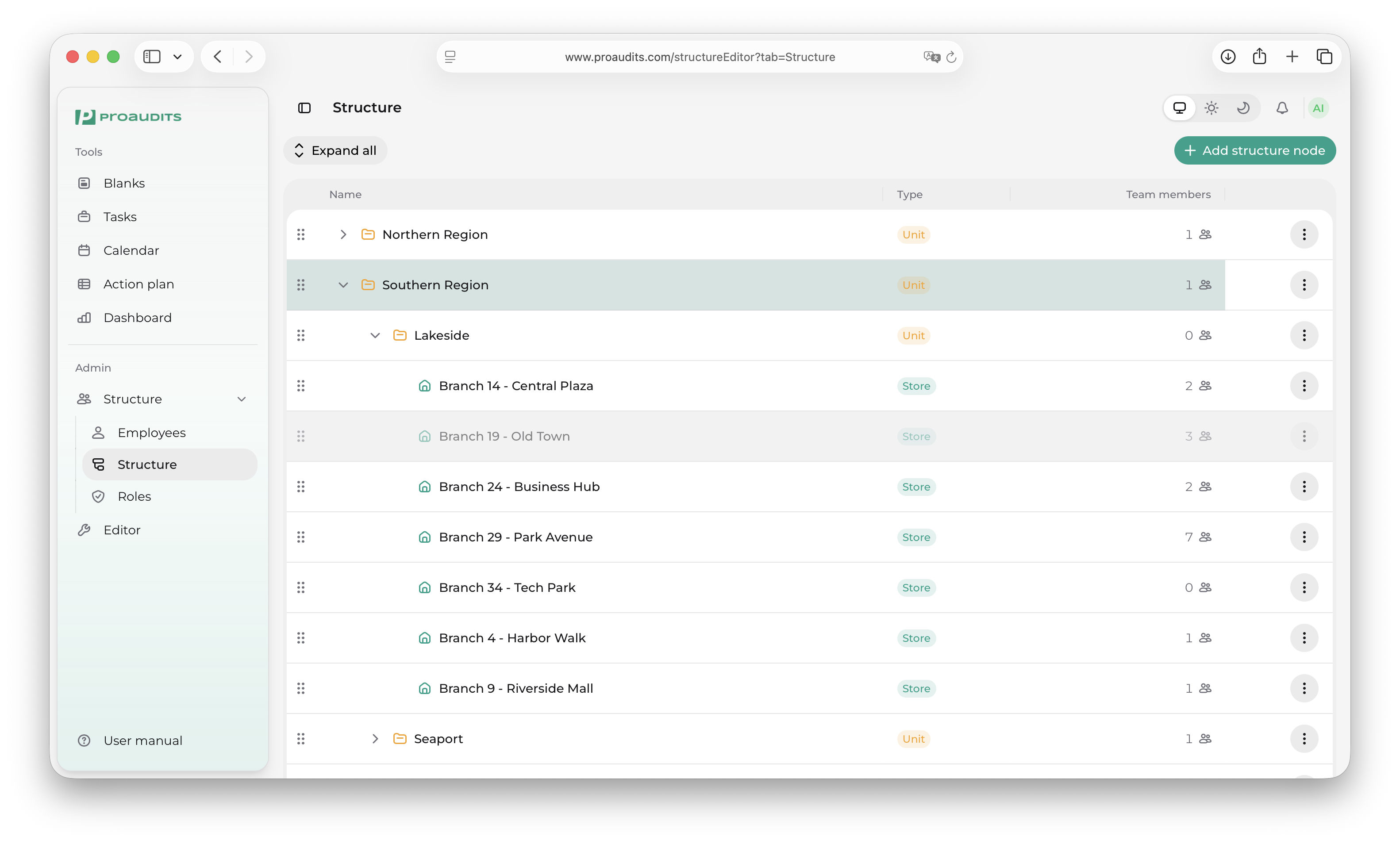
Drag a node onto a new parent to reassign the reporting line. The chart re-flows immediately and ProAudits updates the dashboards that follow this hierarchy.
Drag-and-drop reassignment
Use small moves
Moving a senior person reshuffles a lot of dashboards at once. If you are unsure, talk to the person you are about to assign them to first.
Editing a node
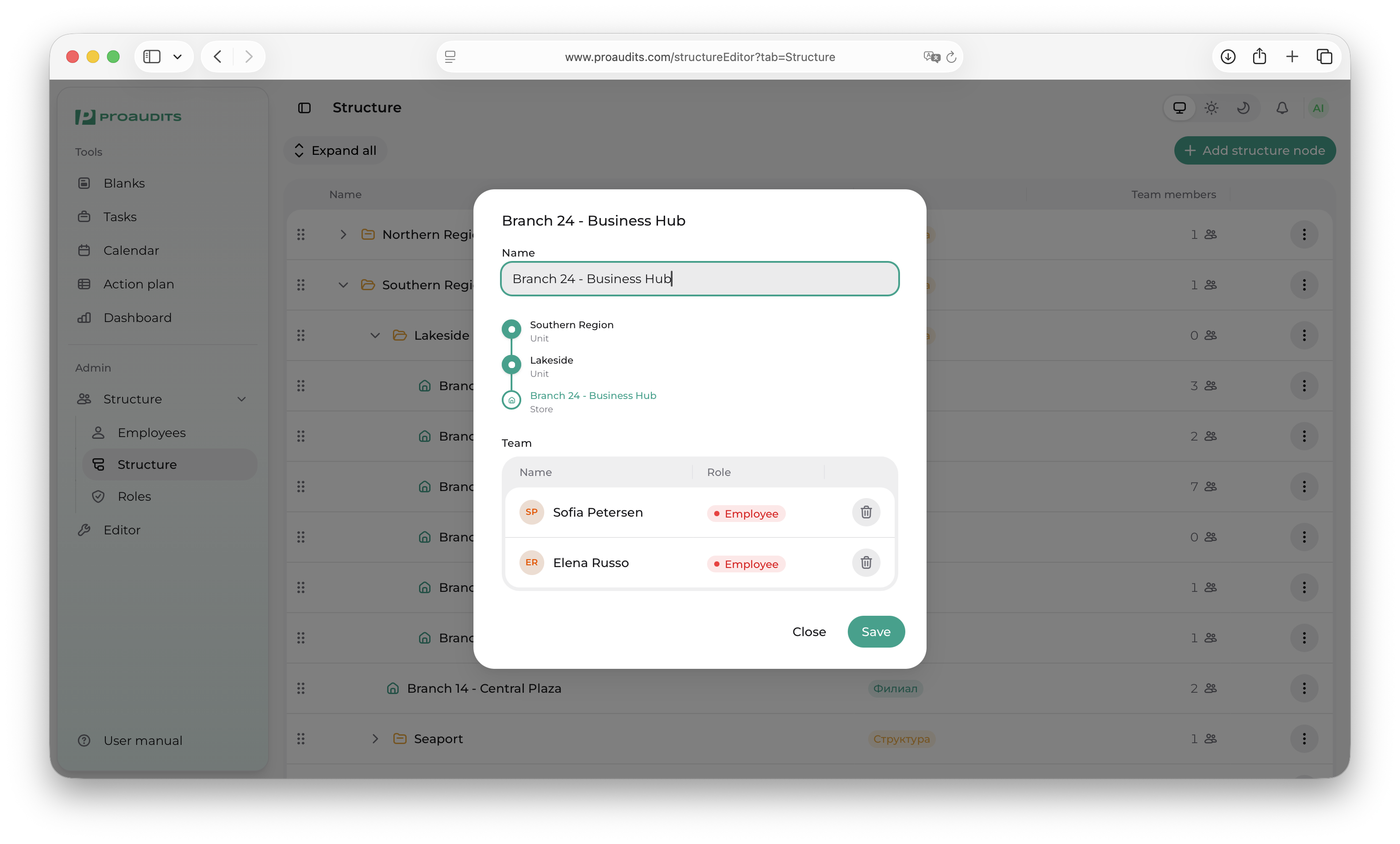
Clicking any node opens its detail drawer — the same one you see in the Employees tab — so you can change role, contact, or manager without leaving the chart.
Edit node drawer
Departments
A department is a "container" node that holds employees but isn't a person itself. Use departments to model your stores, regions, or business units. To create one:
- Right-click any parent node (or use the + in the toolbar).
- Pick Add department.
- Type a name.
You can nest departments as deep as you need — region → city → store, for example.
Visibility — who sees what
The structure also drives what each person can see in the dashboard. A manager sees only their part of the tree by default. The administrator can override this from the Roles & permissions screen if a person needs broader visibility.