Working with audits
Blanks
The Blanks screen — the first sidebar item, and the page ProAudits opens on after sign-in — is the catalogue of every template your account can run. From here you pick a template and a fresh audit is created on the spot.
Blank is the term ProAudits uses for an empty, ready-to-fill template. You always start an audit from a blank.
Blanks — full view
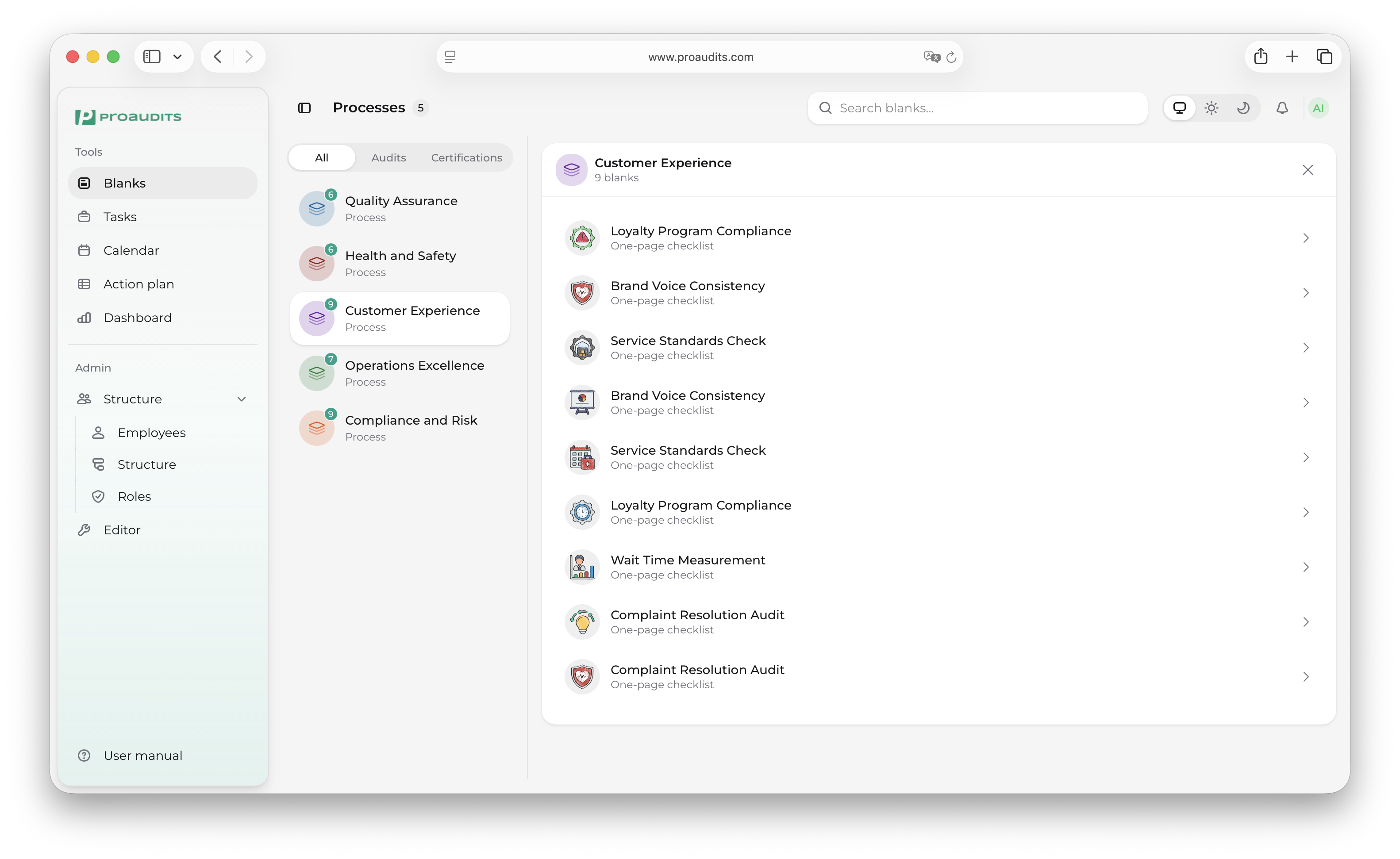
How the page is laid out
Blanks is a two-pane screen on desktop:
- Left pane — your processes. Think of a process as a folder that groups related templates ("Service", "Kitchen", "Stockroom"…).
- Right pane — the templates inside whichever process you have selected.
A vertical divider sits between the panes — drag it left or right to resize. On mobile and tablet the panes stack: tap a process to open its templates, and the back arrow at the top of the templates list brings you back.
The left pane — processes
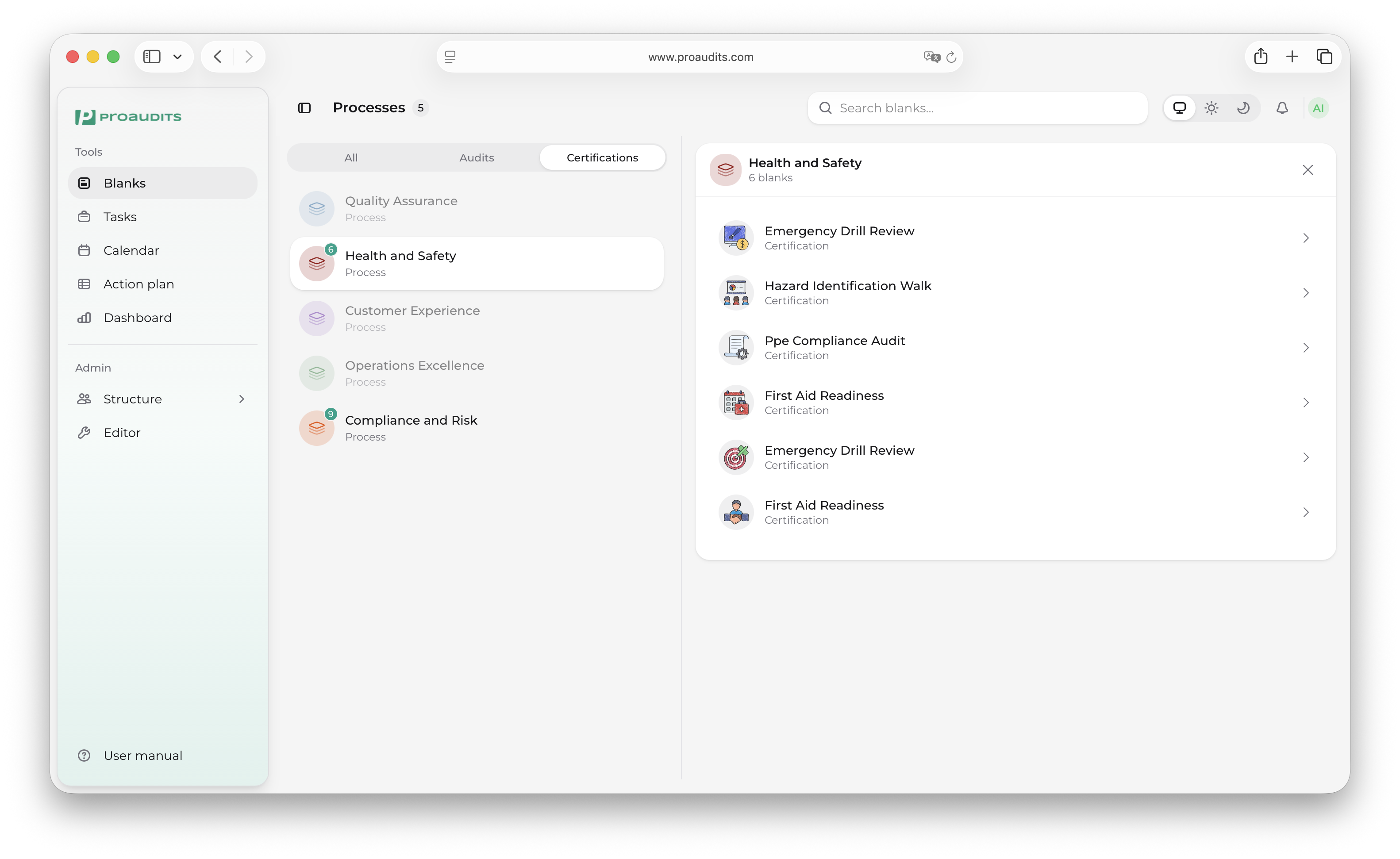
Type filter — All / Audits / Certifications
A segmented control at the top of the process list filters the catalogue by template type. Each segment shows a count of how many templates match.
- All — every blank, regardless of type.
- Audits — checklists and detailed audits.
- Certifications — formal certification templates (often longer, often with extra signoff).
Type filter tabs
The process list
Below the tabs is the vertical list of every process you can access. Each row shows:
- A small colored dot — the process color, set by an administrator in the Audit templates editor.
- The process name.
- A badge with the number of templates in the process (only when it has at least one).
Click a row to select it. The right pane refreshes immediately with that process's templates. Processes that have no templates matching the current filter are dimmed and not clickable.
If your account is brand-new and has no processes yet, the list shows a friendly empty state pointing you to the editor.
The right pane — templates
Once a process is selected, the right pane lists the blanks inside it.
The header strip shows:
- The process color swatch + icon.
- The process name.
- A count like "3 blanks" (using the localised plural — "1 бланк", "5 бланков" in Russian).
- A close (×) button on desktop, or a back (←) arrow on mobile.
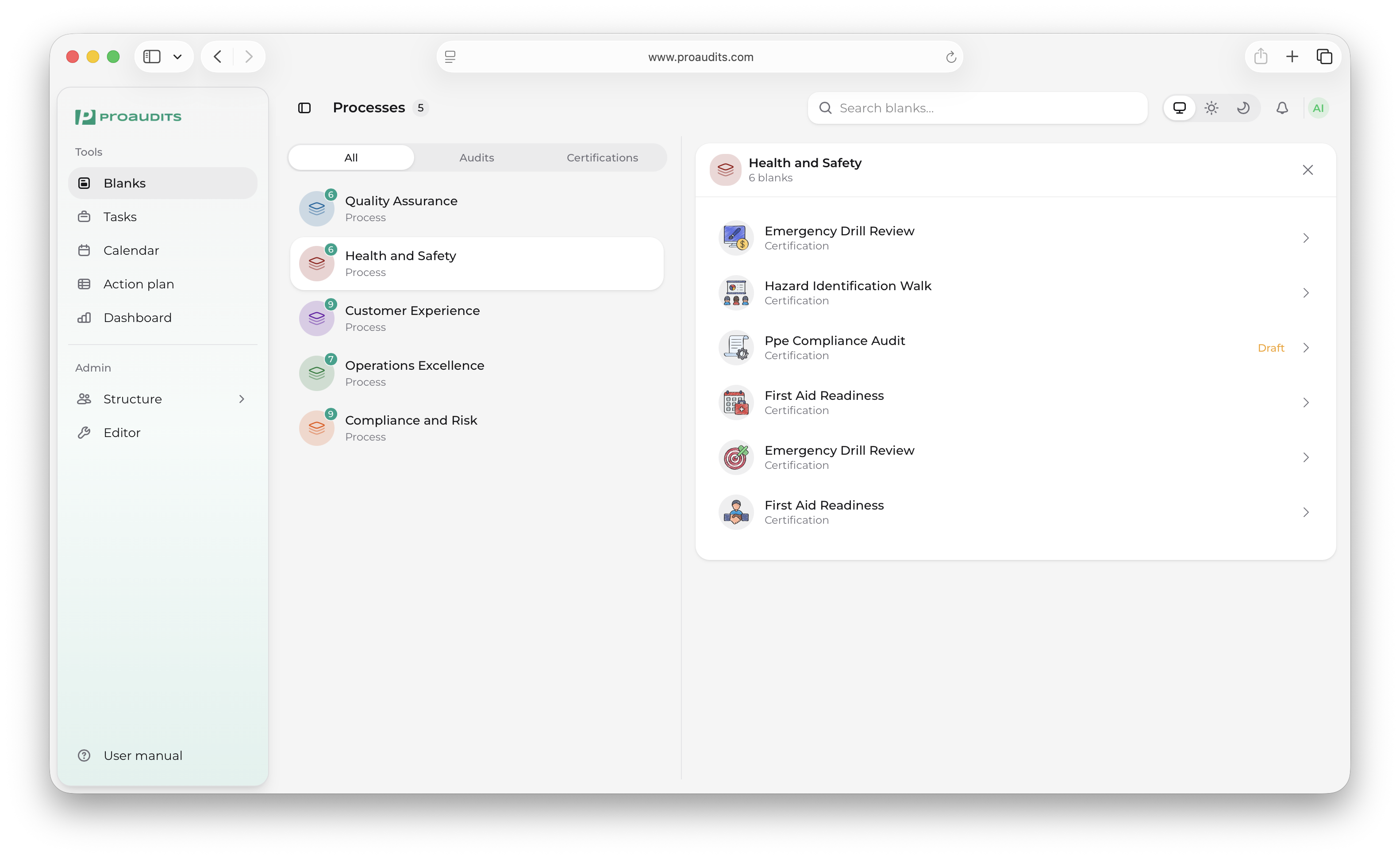
Each template row has:
- The template icon chosen by the designer.
- The template name.
- A subtitle showing the audit type —
Detailed audit,One-page checklist, orCertification. - A DRAFT badge (pulsing yellow) if you already have an unfinished audit started from this blank.
- A chevron arrow on the right, hinting that the row is clickable.
Templates inside a process
Starting an audit
Click any template row to start. ProAudits will:
- Create a brand-new audit instance from the blank (or open your existing draft if one exists).
- Take you straight to the audit page with the form ready to fill in.
The original blank stays untouched — your answers live on the new audit instance, so the same blank can be used as many times as you need.
Resuming a draft
If you have an unfinished audit from a blank, the row shows the DRAFT badge. Clicking it doesn't create a new audit — it resumes the existing one exactly where you left off. There is no separate "drafts" tab; the badge is the marker.
When the right pane is empty
You may see one of these placeholders:
- "Select a process" — you haven't picked a process yet on the left.
- "No templates" — the chosen process has no blanks matching the active type filter.
- Loading skeletons — animated grey rows while data is fetched.
Search across the whole catalogue
The search box lives in the top bar on desktop. Start typing and a dropdown panel slides down with matching templates grouped by process.
Search dropdown
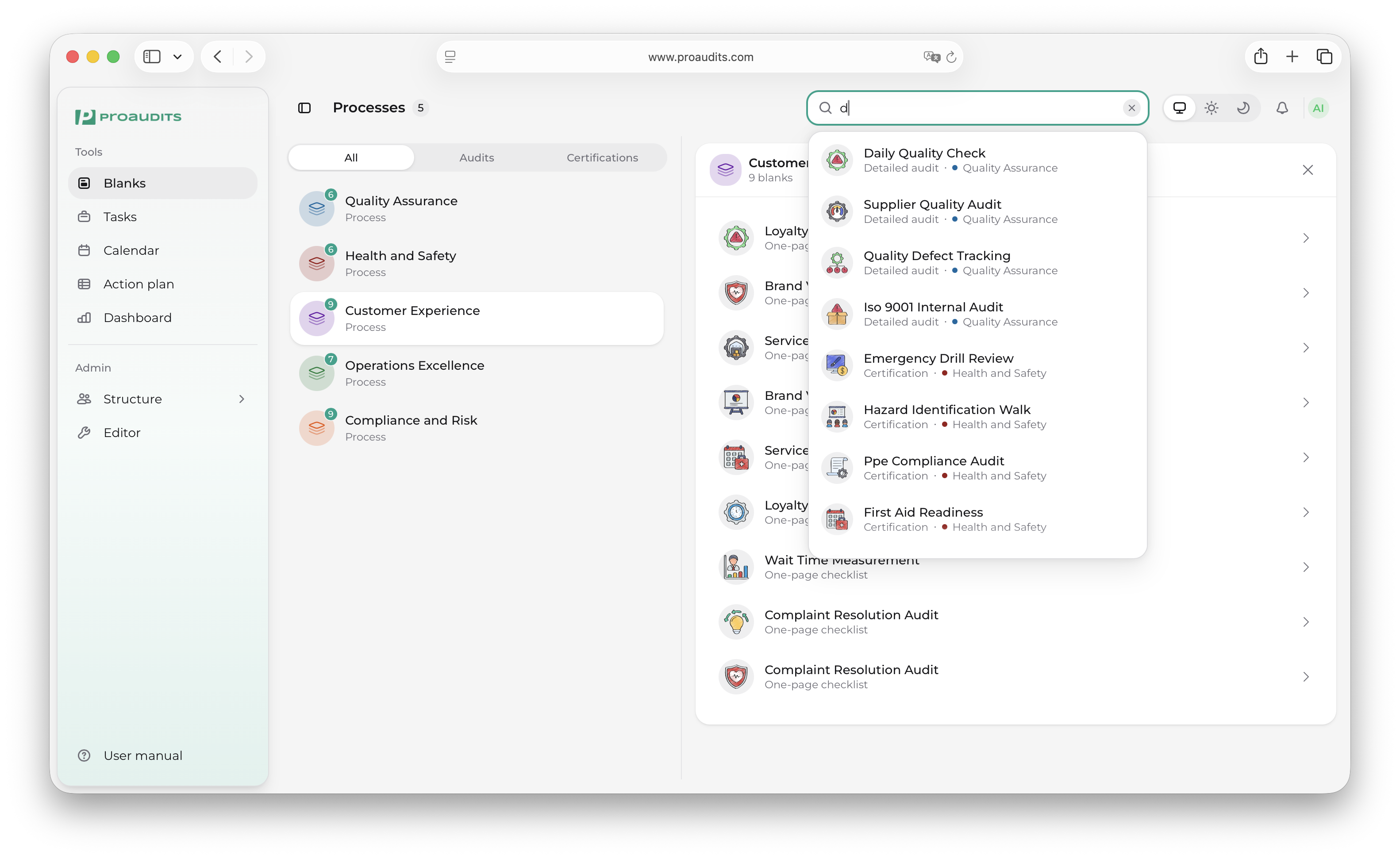
What it matches:
- The template name (case-insensitive, substring).
- Search does not match process names or template descriptions — name only.
Each result row in the dropdown shows the template icon, the template name, the audit type, and the parent process (name + colored dot). Clicking a result jumps straight into starting that audit, exactly as if you had clicked the row in the right pane. Press Esc or click outside to close the dropdown.
On smaller screens the search button collapses into the navbar; tapping it opens the same dropdown.
Read-only users
If your role has the ReadOnly level, the page behaves the same — you can browse every process and template — but rows are dimmed and clicking does nothing. ReadOnly accounts are for managers who need to look but not run audits themselves.
The path of least friction
For most auditors, the Blanks screen is the single page they use to start their day: open the app, pick the process for the location they are visiting, tap the template, and they are running an audit in two clicks.
Where the catalogue comes from
Every process and every blank on this screen is configured in the Audit templates editor. If you can't find a template you expect to see, two things to check:
- Is your role allowed to see it? Templates can be restricted to specific roles.
- Is your structure unit (store/department) allowed to see it? Templates can be restricted to specific units; if no restriction is set, every unit can see them.
Both are set in the per-template settings of the editor — see Template editor.